Simulations Page
The Simulations tab shows how your users respond to phishing simulations: who clicked, who reported, and which lures work best. Filtering. Choose a date range preset ( This month , Last month , Today…

The Simulations tab shows how your users respond to phishing simulations: who clicked, who reported, and which lures work best.
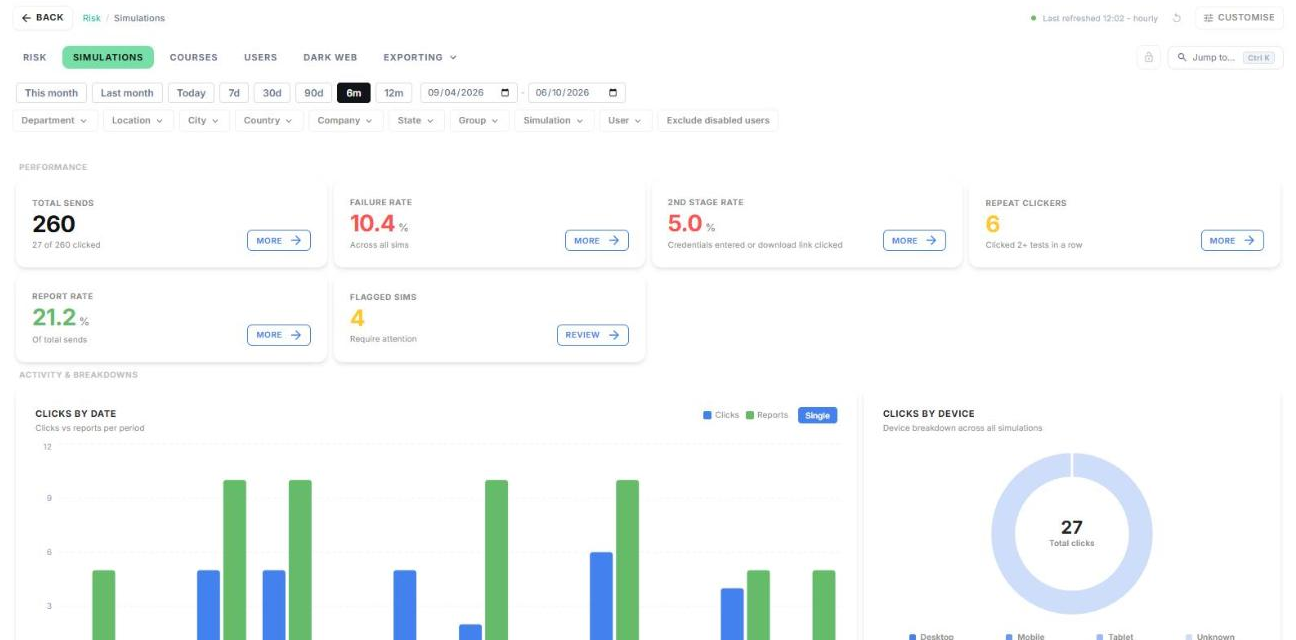
Filtering
- Choose a date range preset (This month, Last month, Today, 7d, 30d, 90d, 6m or 12m), or enter your own dates.
- Use the dropdowns to filter by Department, Location, City, Country, Company, State, Group, Simulation or User.
Note: filters carry over when you drill in from another page. For example, if you open Sales from the League Table and then go to Simulations, the Sales filter is already applied. Check the Filters row before reading the numbers.
Performance
The cards at the top show total sends, failure rate, 2nd stage rate, repeat clickers, report rate and flagged simulations. Click More on a card for detail, or Review to see flagged simulations.
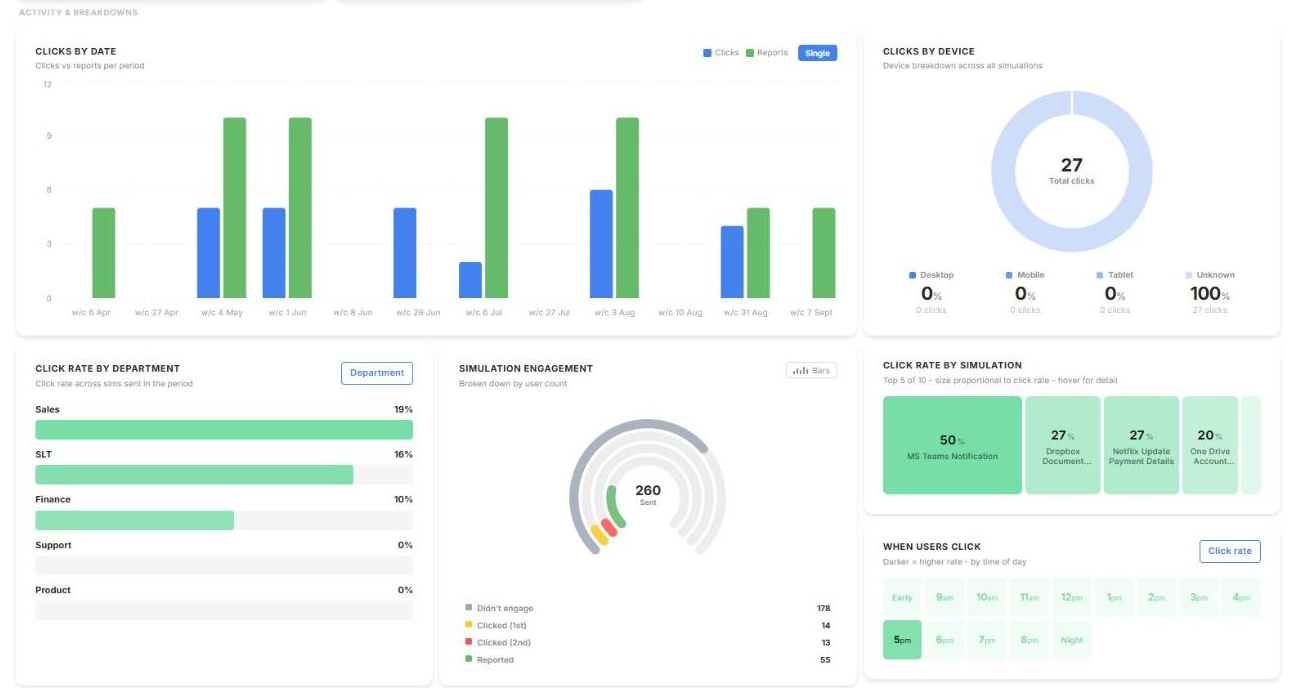
Activity and breakdowns
These charts show clicks against reports by date, clicks by device, click rate by department, simulation engagement, click rate by simulation, and the time of day users click.
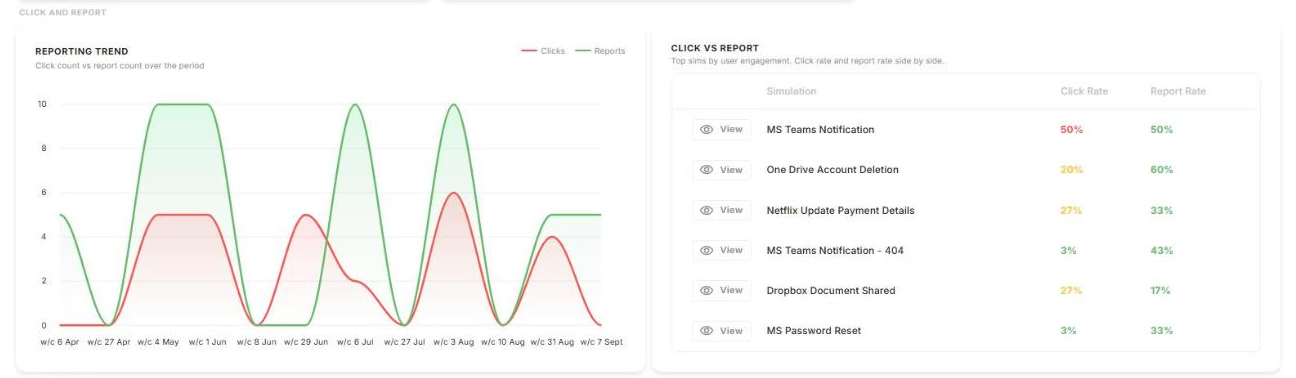
Click and report
Compare how many users clicked against how many reported, over time and for each simulation.
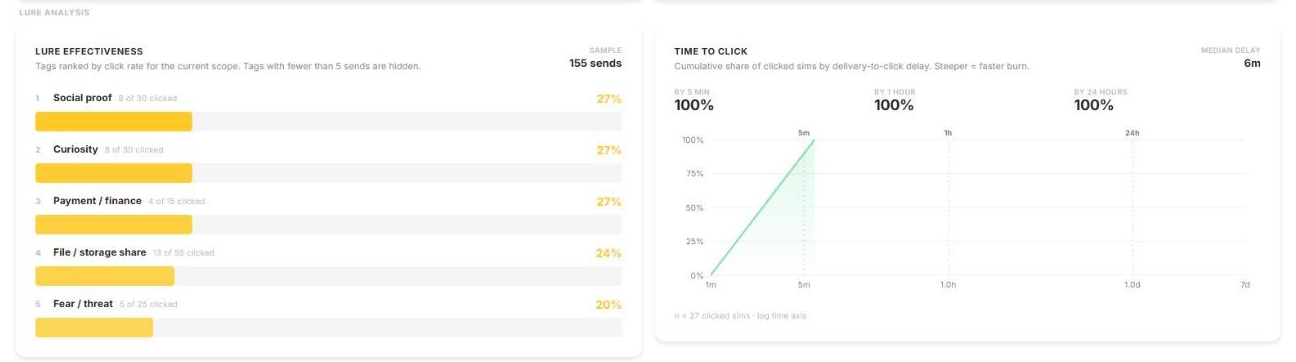
Lure analysis
- Lure effectiveness ranks lure types by click rate. Lures with fewer than 5 sends are hidden.
- Time to click shows how quickly users click after an email arrives.
Detail tables
All simulations lists every simulation with its lure tags, sends, click rate, report rate and difficulty. Below it, the Users and Send history tables can be exported.
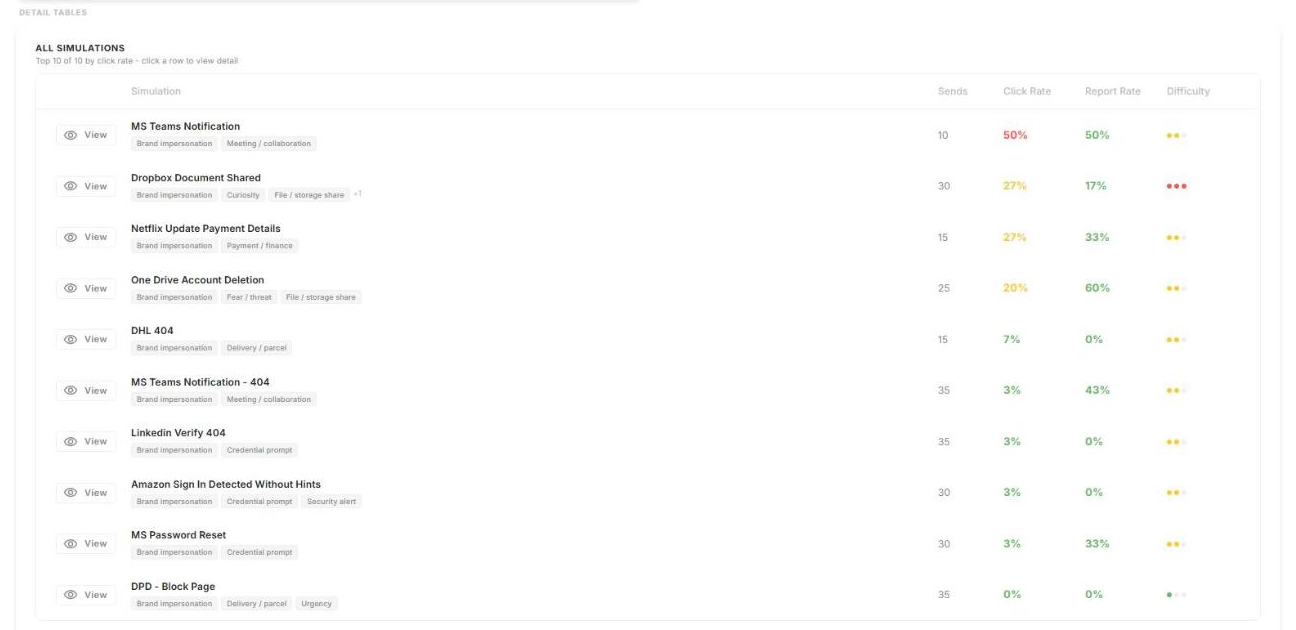
Viewing a Simulation
Open a simulation to see how it performed and who received it.
- On the Simulations tab, scroll to All simulations and click View. You can also search for the simulation with Jump to.
- Review the risk level, lure tags, total sent, click rate, 2nd stage visits and reports.
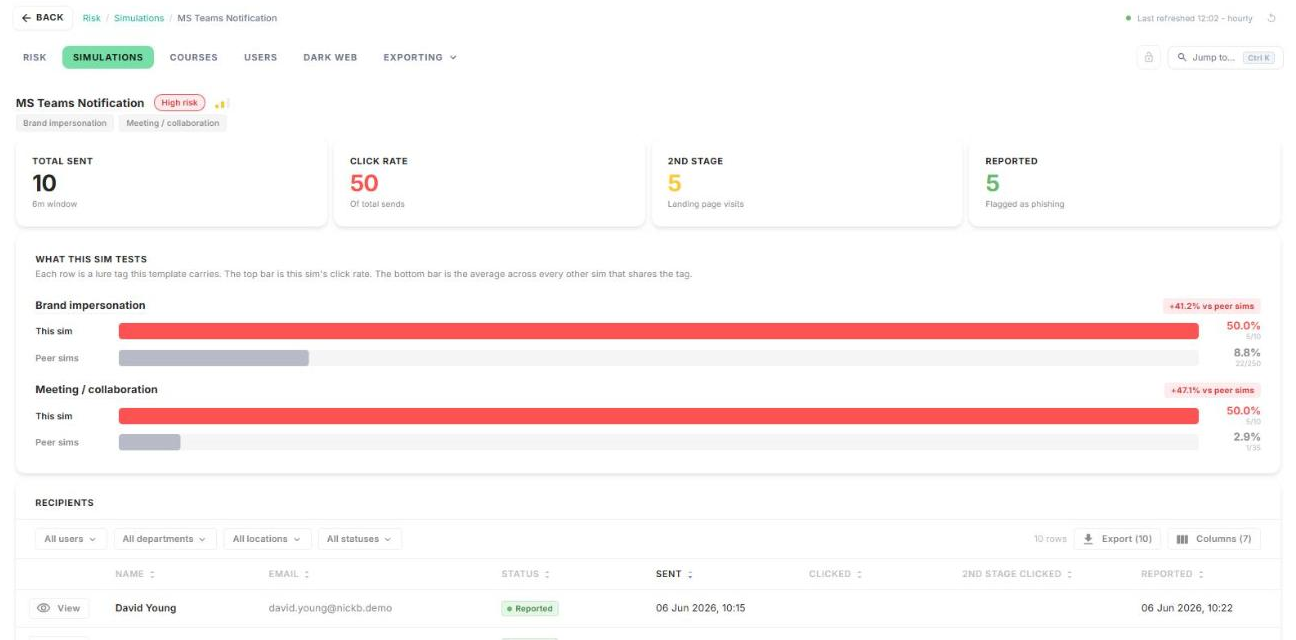
What this sim tests compares this simulation's click rate with other simulations that use the same lure.
Recipients lists everyone who received it, with their status: No engagement, Clicked, 2nd Stage Clicked or Reported. Filter by user, department, location or status, then click Export if you need the list.
Flagged Simulations
Flagged Simulations lists the simulations that need your attention, and why.
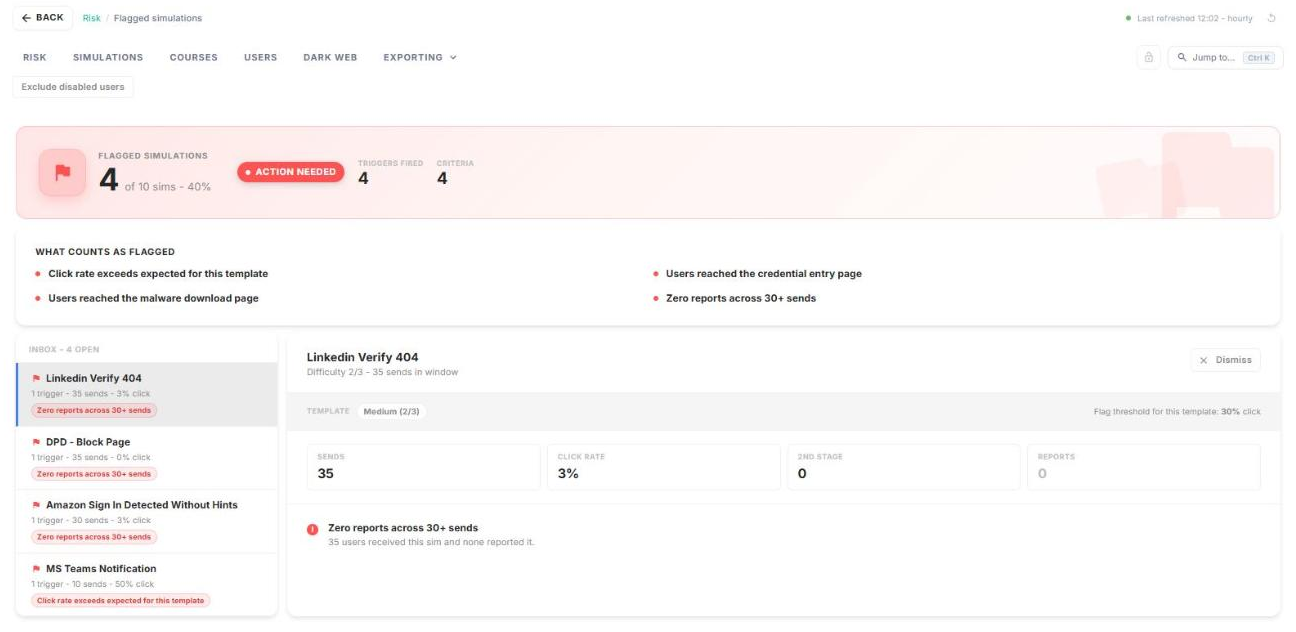
What counts as flagged
- The click rate is higher than expected for that template's difficulty.
- Users reached the credential entry page.
- Users reached the malware download page.
- No one reported it across 30 or more sends.
Reviewing a flagged simulation
- On the Simulations tab, click Review on the Flagged sims card.
- Pick a simulation from the inbox on the left to see which trigger fired, along with its sends, click rate, 2nd stage visits and reports.
- Once you've dealt with it, click Dismiss to remove it from the inbox.
How did we do?
Risk Page
Courses
