Customising the Gmail Phish Report Button
How to change the colour, name and messages of the Phish Report add-on in Gmail.

This short guide will take you through how to match the Phish Report Button in Gmail to your organisation: its colour, its name and the messages your users see after reporting.
Changing the add-on
- In the Boxphish portal, go to Settings > Phish Report Button, select Google Workspace, then open the Customisation tab.
- Change any of the settings below. The Preview on the right shows the three panels as you type.
- Click Save.
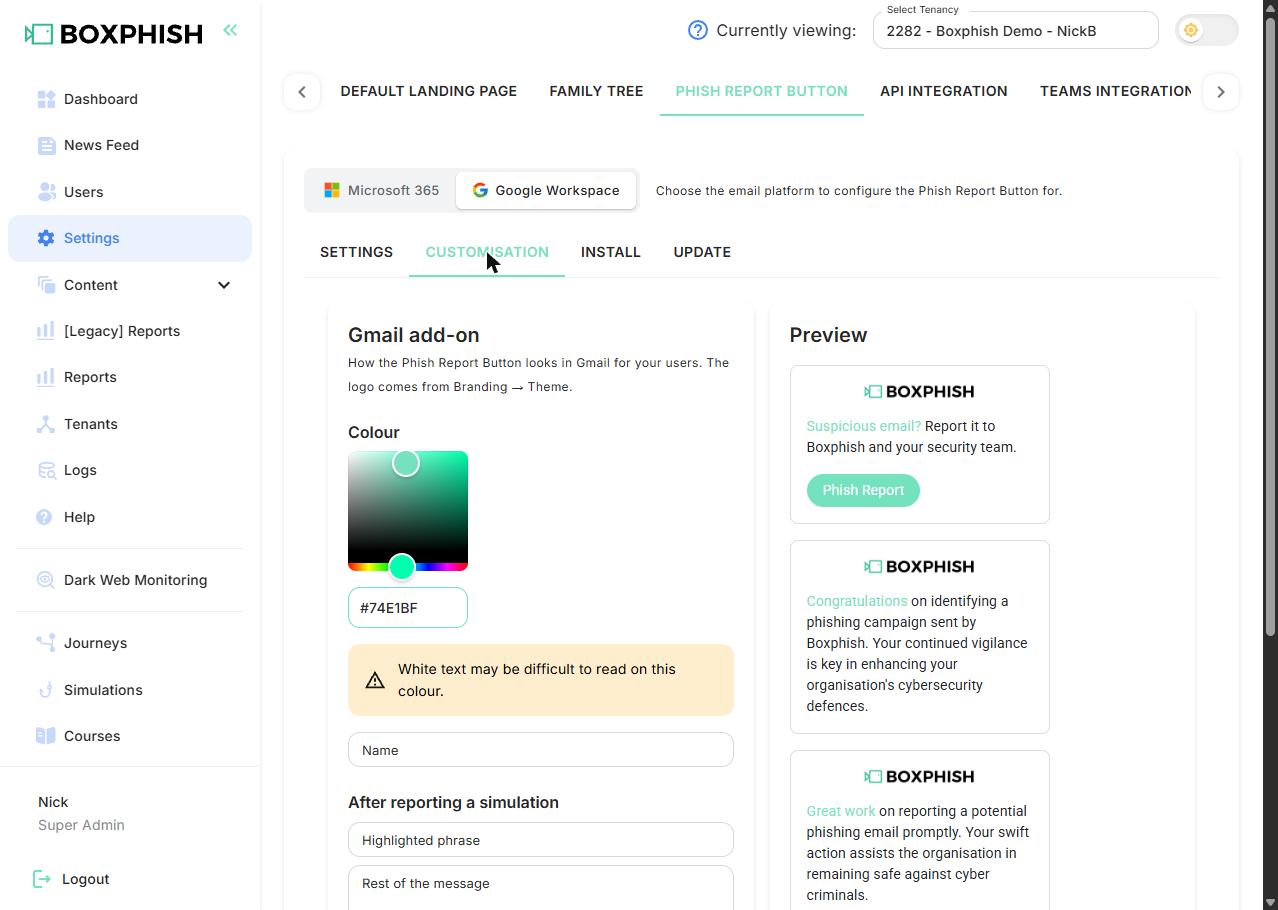
Your users will see the changes within 10 minutes, the next time they open an email.
The settings
Setting | What it does | Limit |
Colour | The button and the highlighted phrase in each message. Pick a colour or type a hex code such as #7B3FE4. It starts as your portal's primary colour, and keeps following it if you leave it unchanged. | A hex colour |
Name | A title shown at the top of the panel. Leave it blank for no title. | 30 characters |
After reporting a simulation | The message users see when they report a Boxphish training email. | Highlighted phrase 40 characters, rest of the message 300 |
After reporting a real email | The message users see when they report any other email. | Highlighted phrase 40 characters, rest of the message 300 |
Each message has two parts: the Highlighted phrase, shown in your colour, and the Rest of the message. Please fill in both, or the default message is used.
If you see "White text may be difficult to read on this colour", the button's white text will not stand out well. Try a darker colour.
Logo
The panel shows the logo from Settings > Branding > Theme in the Boxphish portal. If you have not uploaded one, it shows the Boxphish logo.
Resetting to the defaults
Click Reset to default to put everything back to the Boxphish defaults. This takes effect straight away, without clicking Save.
If you experience any issues with this, please contact us at support@boxphish.com for assistance.
How did we do?
Reporting a Suspicious Email in Gmail
Gmail Phish Report Button Troubleshooting
