Custom Email Domain - Handling Replies
Overview. Custom Email Domain allows you to send training emails from your organisation’s own domain , maintaining brand identity while using the Boxphish platform. Instead of coming from a generic a…

Overview
Custom Email Domain allows you to send training emails from your organisation’s own domain, maintaining brand identity while using the Boxphish platform.
Instead of coming from a generic address, training emails can appear from something like: courses@training.yourcompany.com. However although the email appears to be from an internal address it is still being sent from an external sender which has been given explicit permission to use the subdomain. As such any replies to the email will be sent to that external sender and a mailbox that is not monitored.
This guide will detail how you can prevent replies from leaving your mail server, and provide a response to any users that do reply to course invites.
Essentially you want to control what happens when users send email from within your mail server to the external custom email domain configured, e.g. courses@training.yourcompany.com.
You have two options:
- Reject the message and notify the sender - recommended if you don't want to capture the emails
- Redirect the message to an alternate internal mailbox - recommended if you want to capture the emails
Option 1 – Reject the Message with a Custom Explanation
This method sends a Non-Delivery Report (NDR) with your custom message and stops processing the email, i.e. it is not actually sent to the external address.
Configuration Steps
- Go to Exchange Admin Center https://admin.cloud.microsoft/exchange#/
- Select Mail flow
- Click Rules
- Click Add a rule
- Configure the Rule
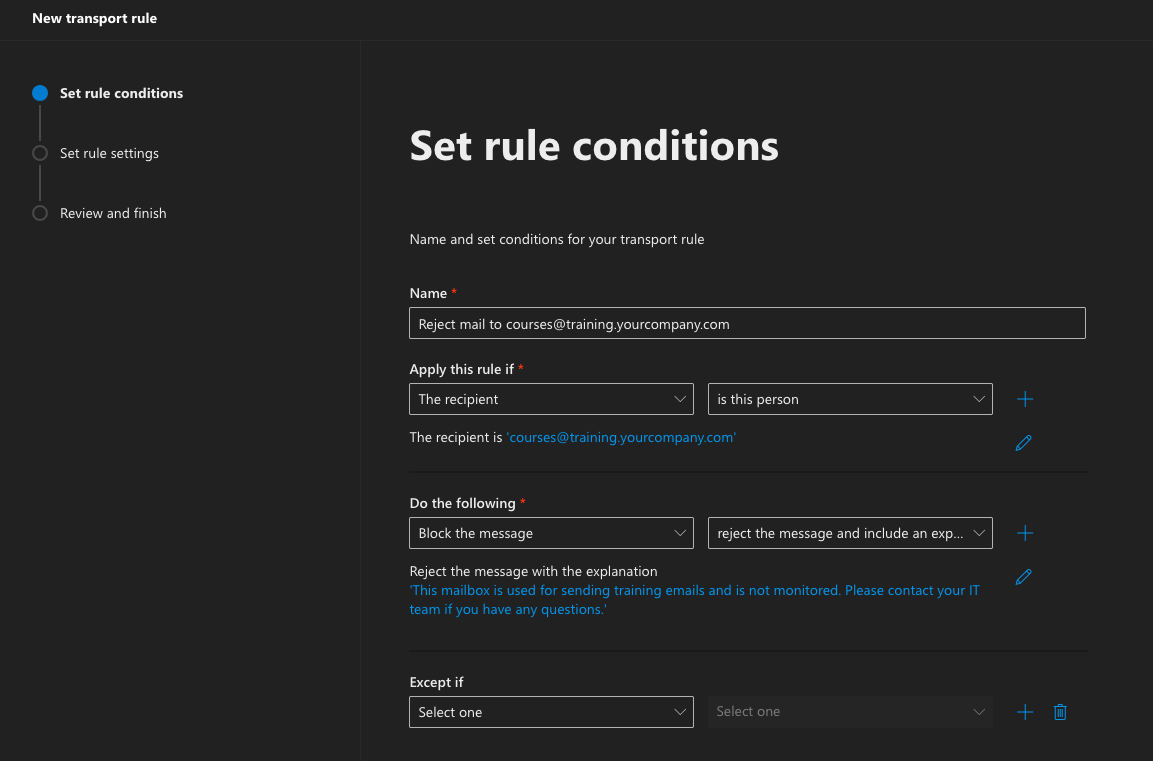
- Provide a Name: 'Reject mail to courses@training.yourcompany.com'
- Apply this rule if: 'The recipient', 'is this person' and add the email address, e.g. 'courses@training.yourcompany.com'
- Do the following: Select 'Block the message', 'reject the message and include an explanation' and add the desired message, e.g. 'This mailbox is used for sending training emails and is not monitored. Please contact your IT team if you have any questions.'
- The rule should look similar to the below:
- Click next and set the rule settings to enforce the rule and stop processing more rules.
- Click next, review the rule and click Finish.
How the rule is applied
- The message is rejected immediately.
- The sender receives your custom notification.
- The message is not delivered or stored anywhere.
Option 2 – Redirect to an Alternate Internal Mailbox
This method redirects the email to another mailbox of your choosing. This will allow you to review the replies and respond appropriately, or configure an auto-reply from the mailbox. This method reroutes the message internally instead of delivering it to the external address. The sender will also not be informed of the redirection unless you manage a response from the mailbox configured.
Configuration Steps
- Go to Exchange Admin Center https://admin.cloud.microsoft/exchange#/
- Select Mail flow
- Click Rules
- Click Add a rule
- Configure the Rule
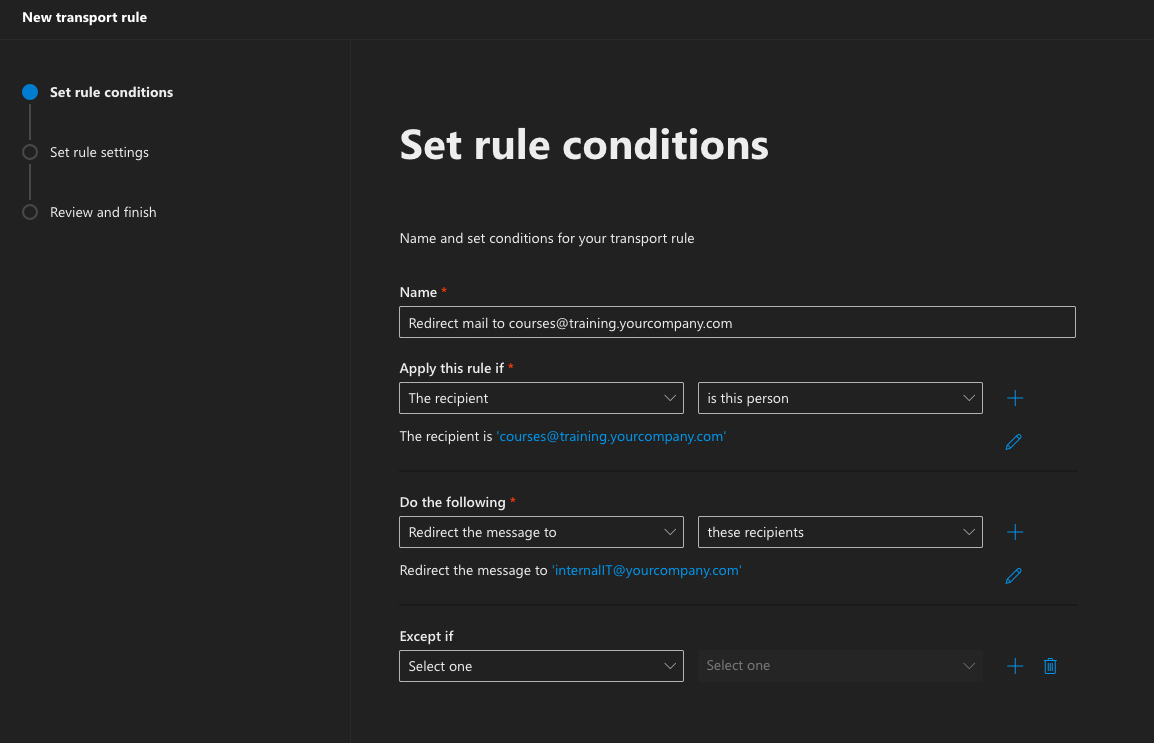
- Provide a Name: 'Redirect mail to courses@training.yourcompany.com'
- Apply this rule if: 'The recipient', 'is this person' and add the email address, e.g. 'courses@training.yourcompany.com'
- Do the following: Select 'Redirect the message to', 'these recipients' and enter the appropriate internal email address.
- The rule should look similar to the below:
- Click next and set the rule settings to enforce the rule and stop processing more rules.
- Click next, review the rule and click Finish.
How the rule is applied
- The original external recipient does not receive the message.
- The internal mailbox receives the message instead and any responses would need to managed from that mailbox.
- The sender is not notified of the redirection.
How did we do?
Custom Email Domain
