Gmail Phish Report Button Installation
How to install the Phish Report add-on in Gmail for your Google Workspace domain

This short guide will take you through how to install the Phish Report Button in Gmail for your Google Workspace domain. It takes about 15 minutes.
You will need a Google Workspace super admin account, admin access to the Boxphish portal, and your users synced into Boxphish from Google Workspace.
Installing the application
- In the Boxphish portal, go to Settings > Phish Report Button and select Google Workspace at the top of the page.
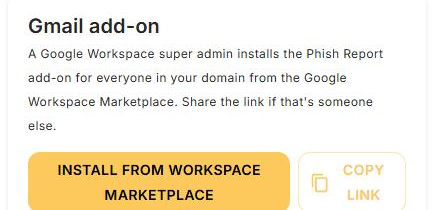
- On the Gmail add-on card, click Install from Workspace Marketplace. If someone else is your Google super admin, click Copy link and send it to them.
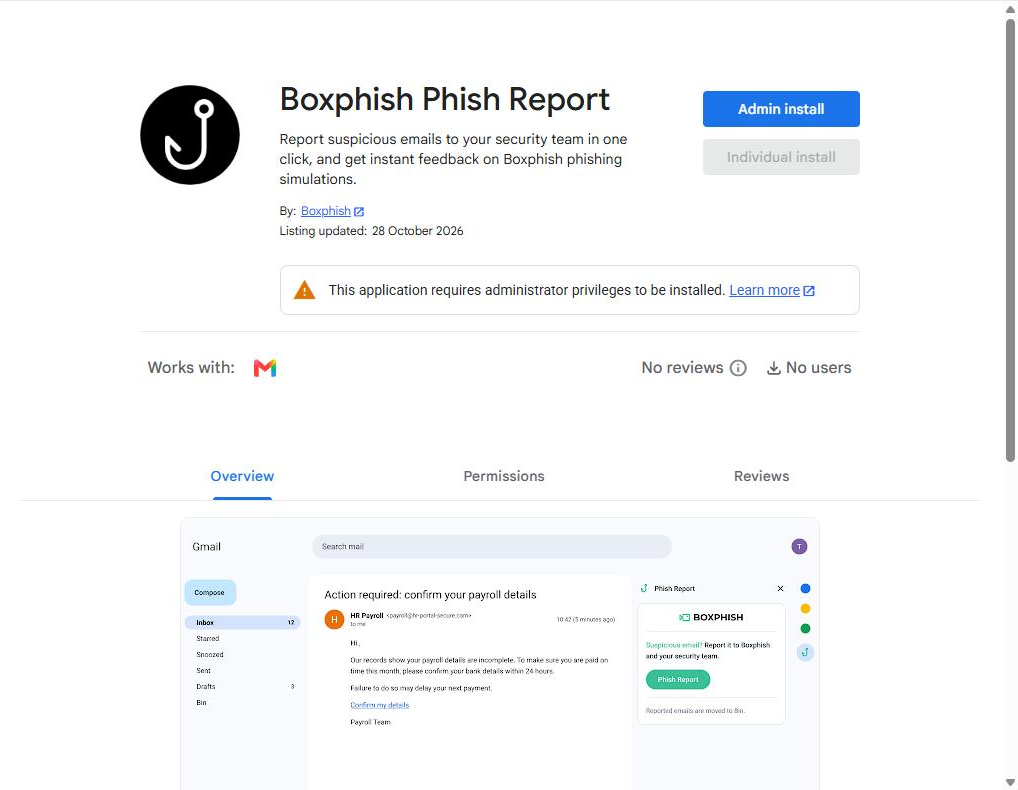
- Signed in as a Google Workspace super admin, click Admin install.
- Choose who gets the add-on: everyone in your organisation, or selected organisational units or groups. Click Continue.
- Review the permissions and click Allow.
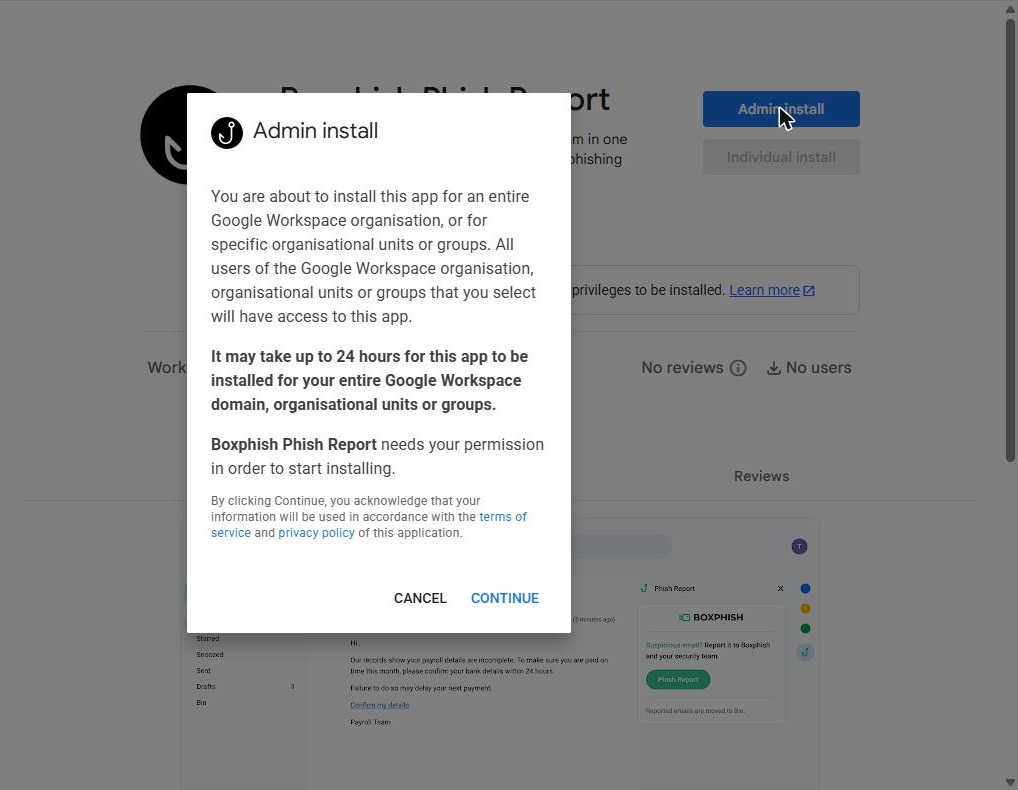
Please note that the add-on can take up to 24 hours to appear in your users' Gmail.
Adding Permissions
This lets Boxphish move reported emails to Bin and, if you choose, send your security team the original email.
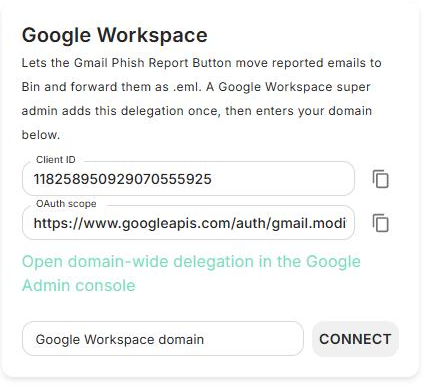
- Back in the Boxphish portal, find the Google Workspace card on the same page. Copy the Client ID and the OAuth scope.
- Click Open domain-wide delegation in the Google Admin console.
- Click Add new, paste the Client ID and the OAuth scope into their boxes, then click Authorise.
Connecting your domain
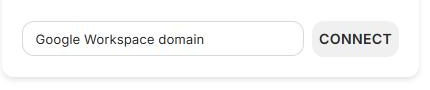
- On the Google Workspace card, enter your domain (for example, example.com) in Google Workspace domain and click Connect.
- Click Test connection to check Boxphish can reach your users' Gmail.
If Connect shows an error, the domain may already be connected to another Boxphish account, or none of your synced users are on that domain.
Choosing your Forwarding address
- On the Forward Phish Emails card, switch the toggle on.
- In Send Email to, enter your security team's email address.
- Optionally, switch on Forward as the original email (.eml) to send the reported email with its attachments and links intact instead of a text copy.
- Click Save.
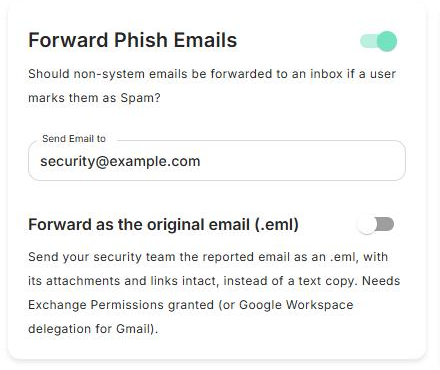
Please note that Forward Phish Emails must stay on. If it is switched off, the button cannot record any reports, including reports of Boxphish simulations.
If you experience any issues with this, please contact us at support@boxphish.com for assistance.
How did we do?
Gmail Phish Report Button Troubleshooting
