Exporting
Export Builder. Export Builder lets you build a custom report from Reports B data, preview it, and download or email it. Building an export. Click Exporting , then Export builder. Choose a template t…

Export Builder
Export Builder lets you build a custom report from Reports B data, preview it, and download or email it.
Building an export
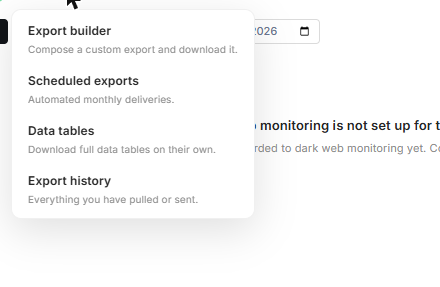
- Click Exporting, then Export builder.
- Choose a template to start from, or build your own:
- Board pack: a one-page narrative for board members (PDF).
- Exec review: one slide per theme for leadership meetings (PowerPoint).
- Monthly ops review: operational detail for the security team (Excel).
- Compliance evidence: training completion and methodology for auditors (PDF).
- Risk deep-dive: the full factor breakdown and highest-risk users (Excel).
- Under Available data, tick the sections you want to include.
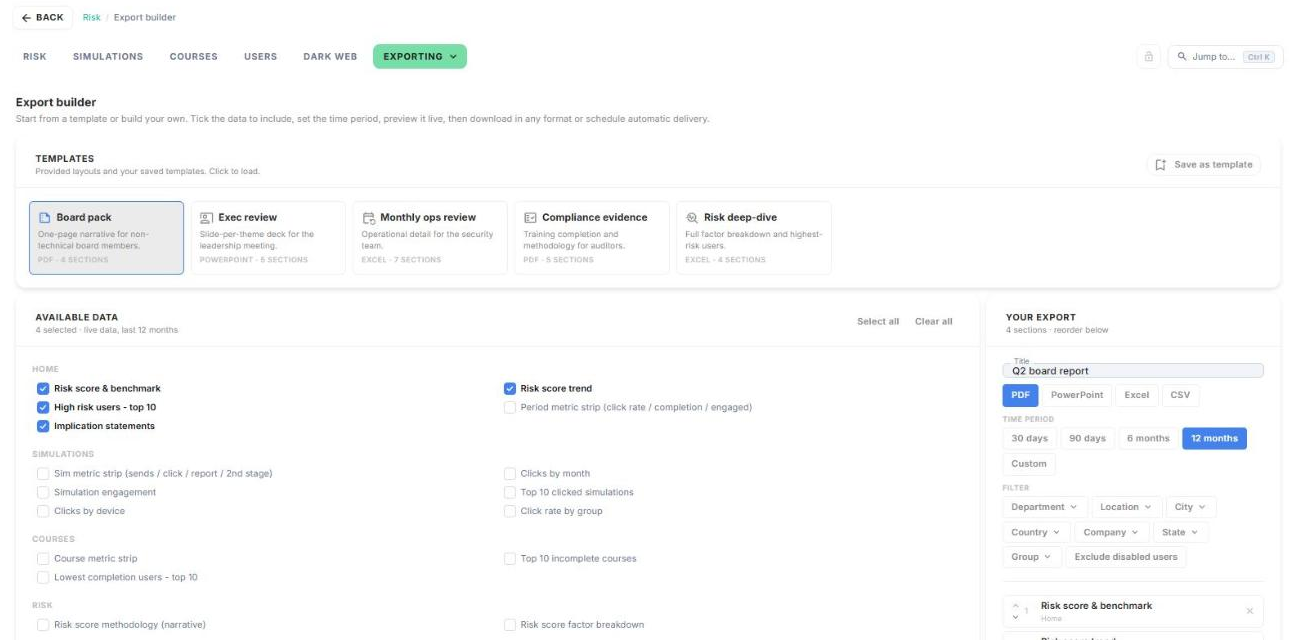
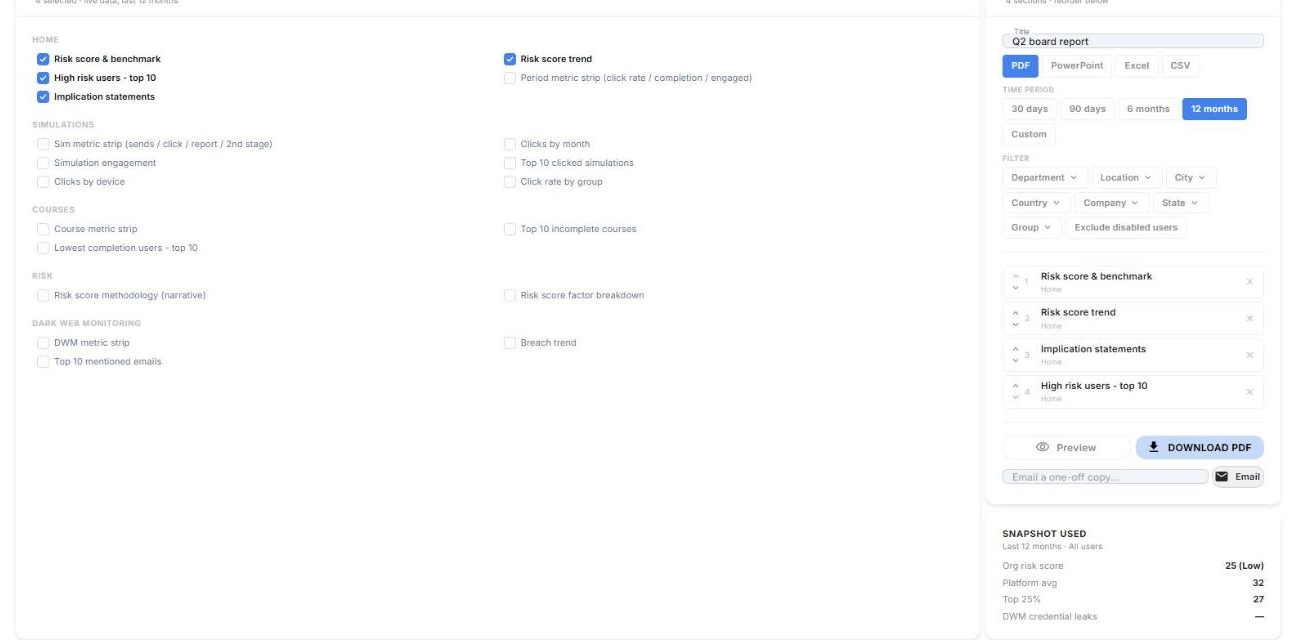
- Under Your export, enter a title and choose PDF, PowerPoint, Excel or CSV.
- Choose a time period, and add filters if you need them.
- Use the arrows to reorder sections, or the x to remove one.
- Click Preview, then Download. To send a one-off copy, enter an email address and click Email.
To reuse your set-up, click Save as template. Saved templates appear next to the built-in ones.
Scheduled Exports
Scheduled Exports sends a report to your chosen recipients automatically every month, quarter or year.
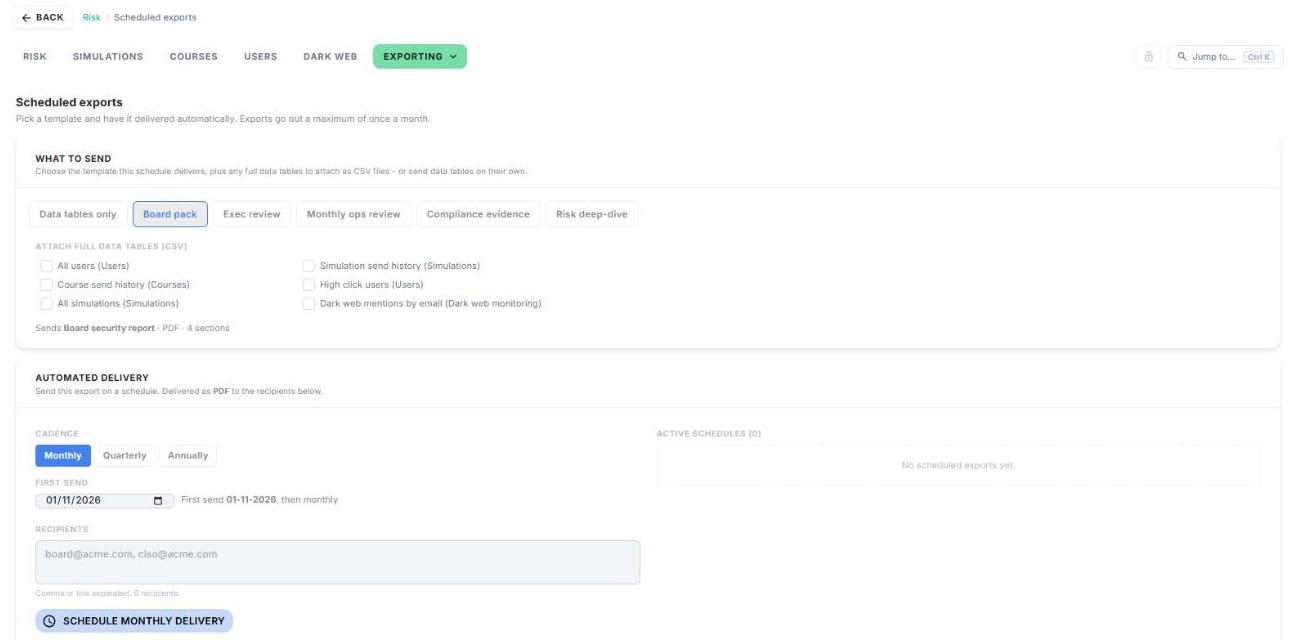
- Click Exporting, then Scheduled exports.
- Under What to send, choose a template, or Data tables only.
- Tick any full data tables to attach as CSV files.
- Choose a cadence (Monthly, Quarterly or Annually) and the first send date.
- Enter the recipients' email addresses, separated by commas or on separate lines.
- Click Schedule delivery.
Your schedules appear under Active schedules. Exports go out at most once a month.
Data Tables
Data Tables lets you download a full dataset on its own, in the format you need.
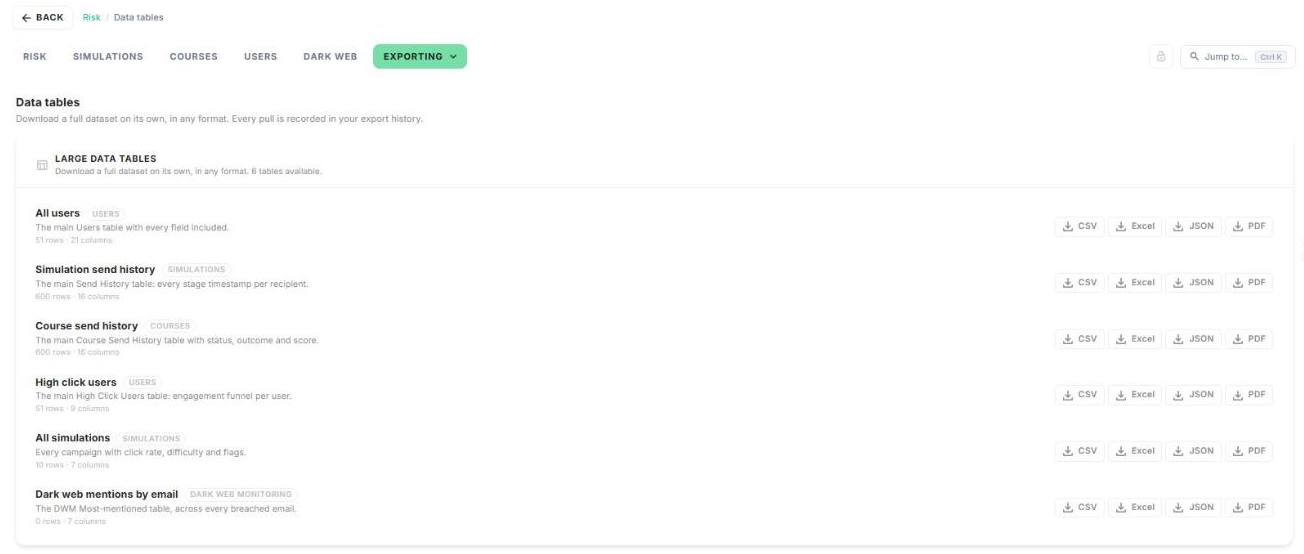
- Click Exporting, then Data tables.
- Find the table you need. Each one shows its row and column count.
- Click CSV, Excel, JSON or PDF to download it.
Available tables: All users, Simulation send history, Course send history, High click users, All simulations and Dark web mentions by email. Every download is recorded in Export History.
Export History
Export History lists every export you've downloaded or sent, so you can get it again with the latest data.
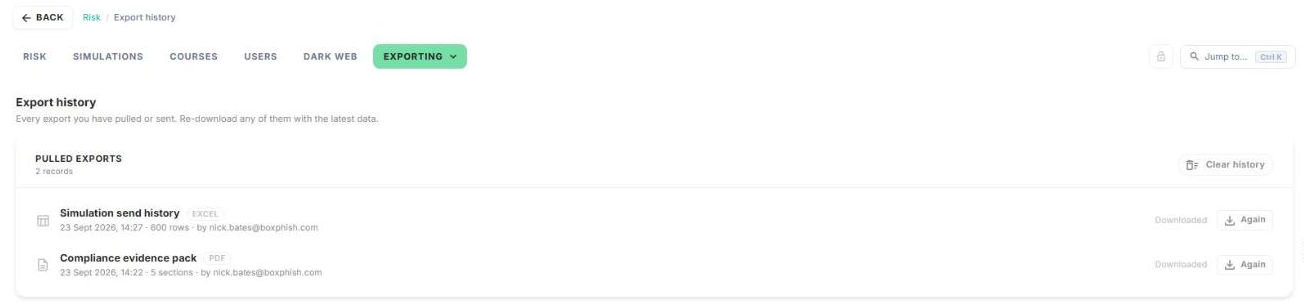
- Click Exporting, then Export history.
- Find the export. Each entry shows its format, date and time, size, and who ran it.
- Click Again to download it again with the latest data.
Click Clear history to empty the list.
How did we do?
Dark Web Page
Reports - Package Comparison
