Custom Email Domain
Overview. Custom Email Domain allows you to send training emails from your organisation’s own domain , maintaining brand identity while using the Boxphish platform. Instead of coming from a generic a…
Overview
Custom Email Domain allows you to send training emails from your organisation’s own domain, maintaining brand identity while using the Boxphish platform.
Instead of coming from a generic address, training emails can appear from something like: courses@training.yourcompany.com
How to Set It Up
Step 1 – Configure in the Platform
- Go to Settings → Custom Email Domain.
- Enter your organisation’s domain (e.g.
yourcompany.com). - Choose your subdomain prefix (e.g.
training). - Set your email sender name (e.g.
courses). - Click Save & Get NS Records.
Example outcome: courses@training.yourcompany.com
Step 2 – IT Team Updates DNS
- We’ll provide the NS (Name Server) records to add.
- Your IT team adds these to your DNS provider.
- This is a one-time, low-risk configuration.
- No changes to your main domain are needed.
Step 3 – Verify Setup
- Return to the platform and click Check Verification.
- Once verified, you’re all set. Your training emails will now send from your custom domain.
What Your IT Team Needs to Know
Requirement | Details |
DNS Access | Must be able to add NS records to your domain |
Record Type | NS (Name Server) |
Propagation Time | Typically 5–30 minutes, up to 48 hours |
Risk Level | Very low – only affects the training subdomain |
Maintenance | None required after setup |
Security Note
We use subdomain delegation, the industry-standard approach for third-party email services.
This ensures:
- We never need access to your main domain credentials.
- Your corporate email system remains fully unaffected.
- You can revoke access at any time by removing the NS records.
- Clear separation of control between your main domain and Boxphish.
Parent / Child Domain Inheritance
If your account has a parent-child tenancy structure, custom sending domains flow downward only from parent to children.

- When setting a custom sending domain, you can enable Share with Tenancy Family:
- Enabled
- The custom domain is shared with all child tenancies.
- All children automatically inherit and use the same sending domain.
- Disabled
- The custom domain applies only to the current tenancy.
- Child tenancies continue using their existing domain (either the default
portal@boxphish.comor a domain they have set themselves).
- Enabled
- Flow charts:
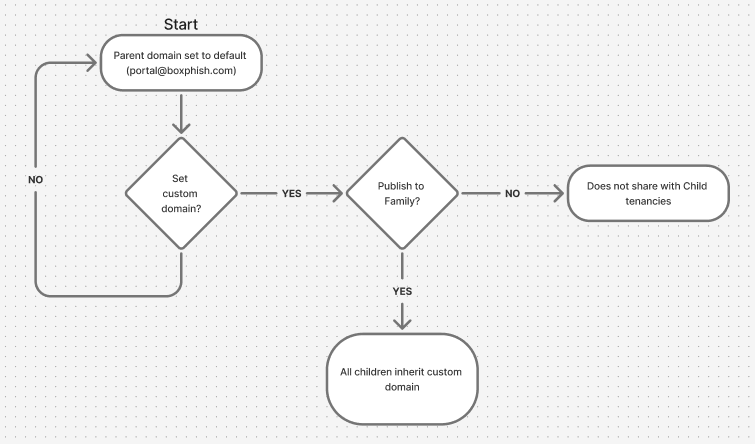
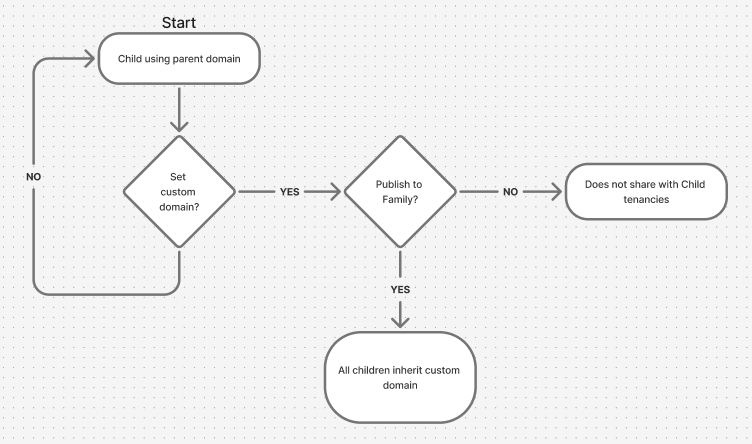 Custom domains only ever propagate downward. Domains are never shared upwards or between sibling tenancies.
Key Benefits
Professional Branding
- Emails appear to come directly from your organisation.
- Builds trust and recognition among employees.
- Keeps a consistent brand experience across all communications.
Security & Reputation Protection
- Your main domain (e.g. yourcompany.com) stays completely isolated and protected.
- A dedicated subdomain is used for training emails.
- Any deliverability issues are contained to the training subdomain only.
- Follows industry best practices used by major organisations.
Zero Maintenance
- One-time setup handled by your IT team.
- Boxphish manages all ongoing DNS configuration.
- No regular updates or changes required.
- Full visibility and control via your platform settings.
Improved Deliverability
- Built-in SPF, DKIM, and DMARC authentication.
- Dedicated sender reputation for training emails.
- Higher inbox placement and reduced spam risk.
Where It Applies
Custom Email Domain applies to all course send methods, including:
- On-demand Sends
- Journey Builder
- Content Packs
How did we do?
Custom Landing Page
Custom Email Domain - Handling Replies
