Reporting a Suspicious Email in Gmail
How to report a suspicious email with the Phish Report Button in Gmail.

This short guide will take you through how to report a suspicious email with the Phish Report Button in Gmail.
If an email looks suspicious, do not click its links, open its attachments, reply to it or forward it. Report it instead.
Reporting an email
- Open the email in Gmail on your computer.
- In the panel on the right of Gmail, click the Phish Report icon. Your organisation may have given it a different name or colour.
- Click Phish Report.
- Read the message that appears. The email is moved to Bin.
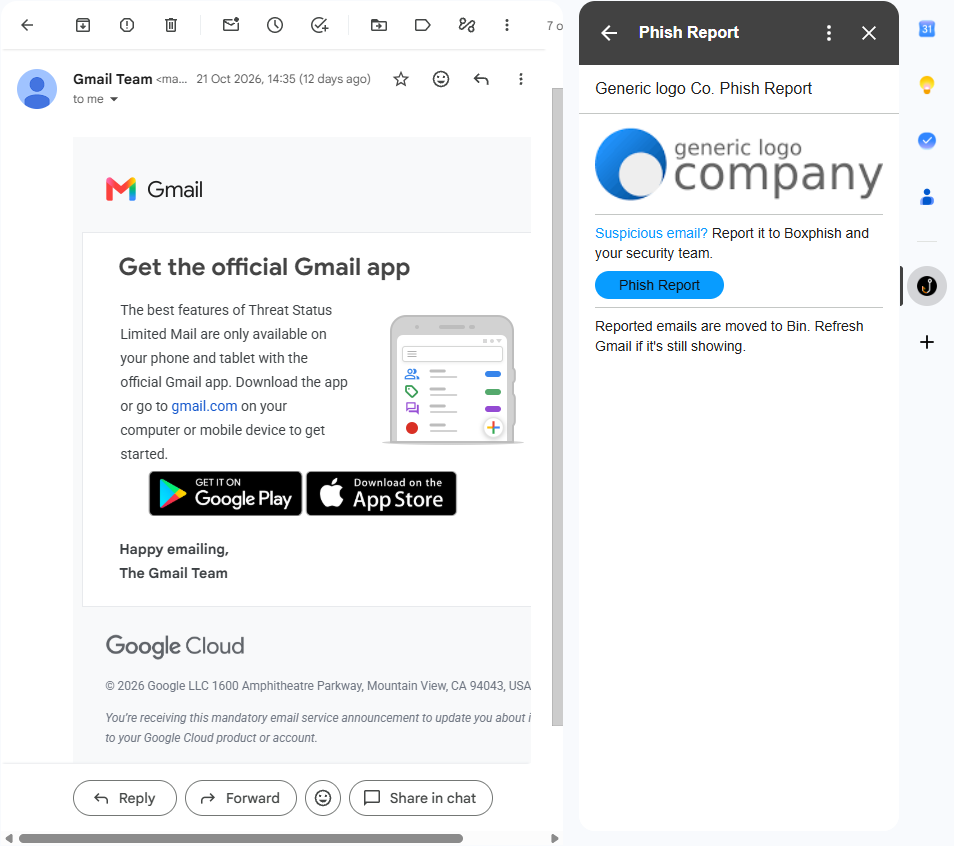
If the email is still showing after you report it, refresh Gmail. It has already been moved to Bin, and Gmail just has not updated the page yet.
What the message means
You see | What happened |
Congratulations on identifying a phishing campaign sent by Boxphish | It was a Boxphish training email. Your report is recorded and the email is moved to Bin. |
Great work on reporting a potential phishing email | A copy has gone to your security team and the email is moved to Bin. |
Thank you for reporting this email | The report could not be completed. Do not interact with the email, and tell your IT or security team about it in the usual way. |
Permissions needed | Click Grant permissions, tick every permission Phish Report asks for, then try again. |
Please note that your organisation may have changed the wording of these messages.
If you experience any issues with this, please contact your IT team.
How did we do?
Customising the Gmail Phish Report Button
