Microsoft Teams app installation
This guide walks you through installing the Boxphish app in your Microsoft Teams tenant and making it available to all users via the global setup policy. You must be a Microsoft Teams Administrator t…
This guide walks you through installing the Boxphish app in your Microsoft Teams tenant and making it available to all users via the global setup policy.
You must be a Microsoft Teams Administrator to complete these steps.
Duration: < 15 mins.
Grant Admin Consent
Granting admin consent allows the Teams app to send notifications and access basic organisation information.
- Login to the Portal.
- Navigate to: Settings -> Teams Integration.
- Locate the Admin Consent panel.
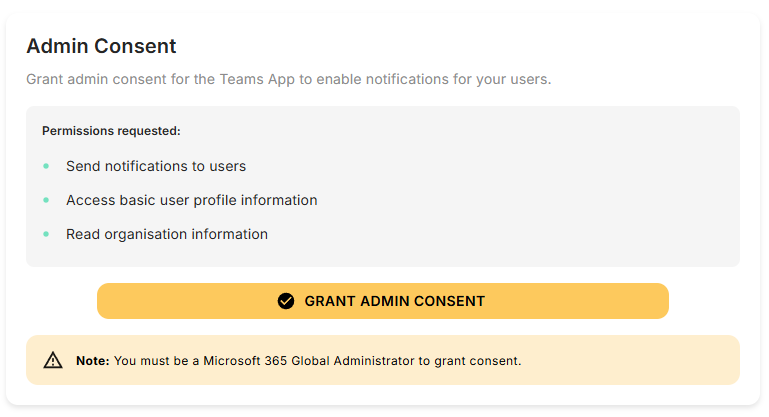
- Review the permissions being requested.
- Click Grant Admin Consent.
- Sign in with a Microsoft 365 Administrator account when prompted.
- Accept the permissions request to complete the consent process.
Download the App Package
- In the Download Teams App panel, click Download App Package.
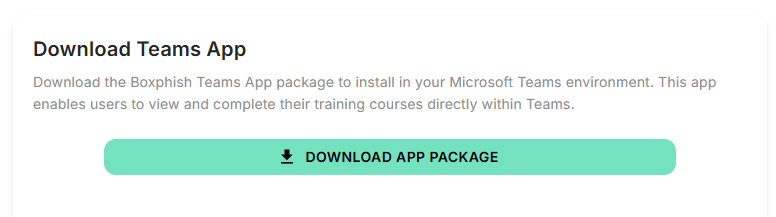
- Save the downloaded file to your computer.
This ZIP file does not need to be unzipped.
Upload the Boxphish App
- Open the Microsoft Teams Admin Center:
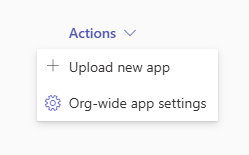
https://admin.teams.microsoft.com/policies/manage-apps - Click Actions and then select Upload new app.
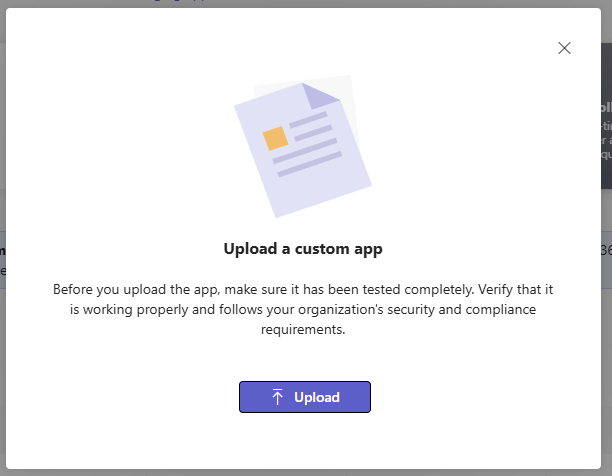
- Click Upload and select the Boxphish app package file.
- Once uploaded, use the search bar to locate Boxphish in the apps list.

- Select the Boxphish app.
- Click Install for everyone.
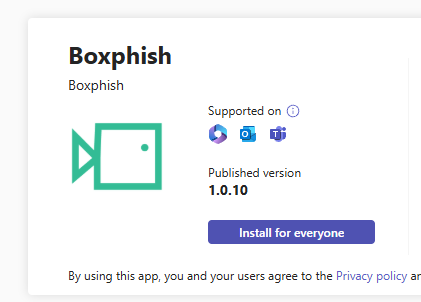
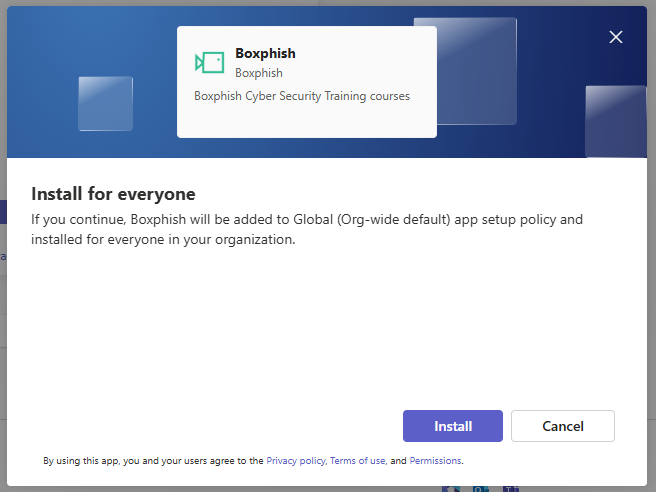
- Click Install to confirm.
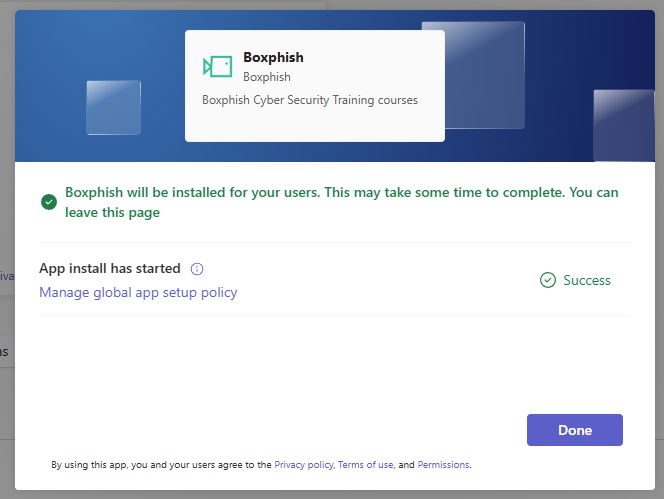
- Wait for the installation to complete, verify the success message, then click Done.
If you do not see the 'Install for everyone' button, follow the steps below for each policy users are assigned to:
- In the Teams Admin Center, navigate to: Teams apps -> Setup policies.
- Select a policy (you will need to do this for each policy users' are assigned to).
- Click Add apps.
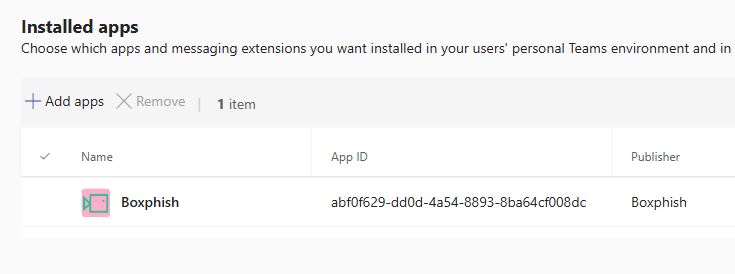
- Type Boxphish in the search bar.
- Click Select.
- Click Add.
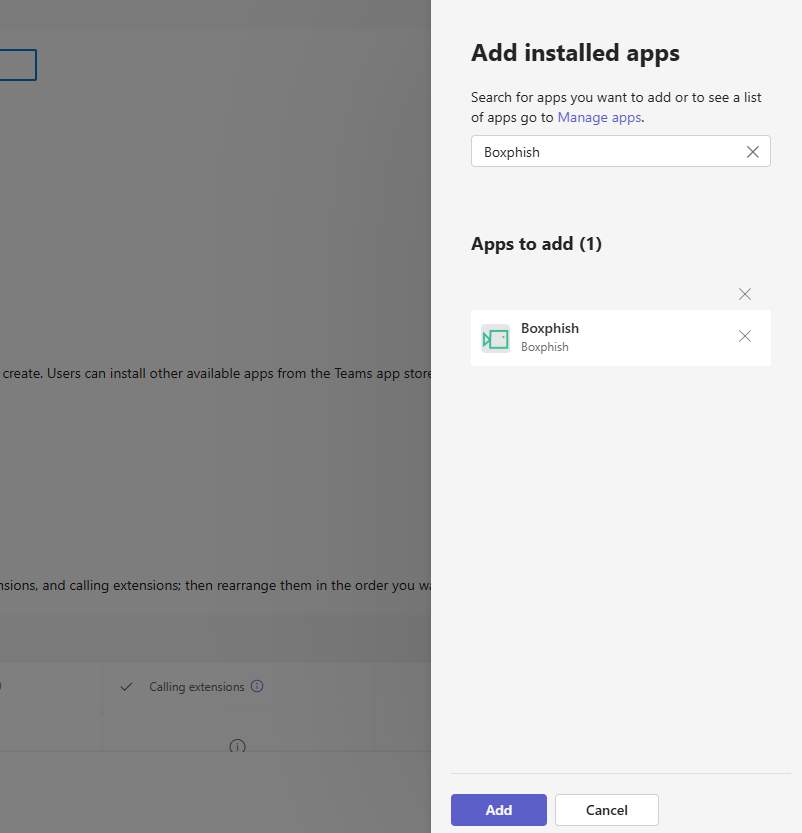
- Click Save.
We recommended following the next step before clicking save for each policy.
Add Boxphish to the Teams Navigation Bar
- In the Teams Admin Center, navigate to: Teams apps -> Setup policies.
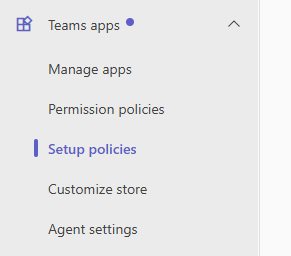
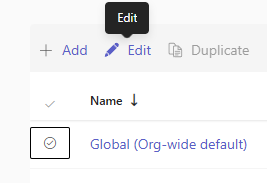
- Select the Global (Org-wide default) policy and click Edit. Note: You can create a custom policy instead if required, but this guide covers the Global policy.
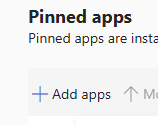
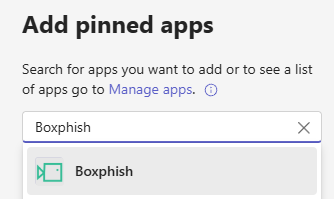
- Under Pinned apps, click Add apps.
- Search for Boxphish and select it.
- Click Save to apply the policy.
Complete!
The Boxphish app is now installed and pinned across your organisation.
Users may need to restart Microsoft Teams for the app to appear in their navigation bar.
Usually this will take 5-30 minutes to appear, however, it can take up to 24 hours for any Teams app changes to appear.
Turning notifications from Emails or Teams On/Off
- Navigate to Settings.
- Scroll down to Course Notifications.
- Turn notifications from Emails or Teams On/Off.

Turning off both Emails and Teams will result in Users receiving no course notifications.
How did we do?
Adding Users via CSV
Managing your User Sync
