Microsoft Teams app
The Microsoft Teams app allows you to complete your security awareness training directly inside Microsoft Teams. You’ll receive course notifications and reminders in Teams and can launch and complete…
The Microsoft Teams app allows you to complete your security awareness training directly inside Microsoft Teams.
You’ll receive course notifications and reminders in Teams and can launch and complete courses without opening a separate website or relying solely on email reminders. This helps you stay up to date with your assigned training while working in your normal day-to-day tools.
Getting started
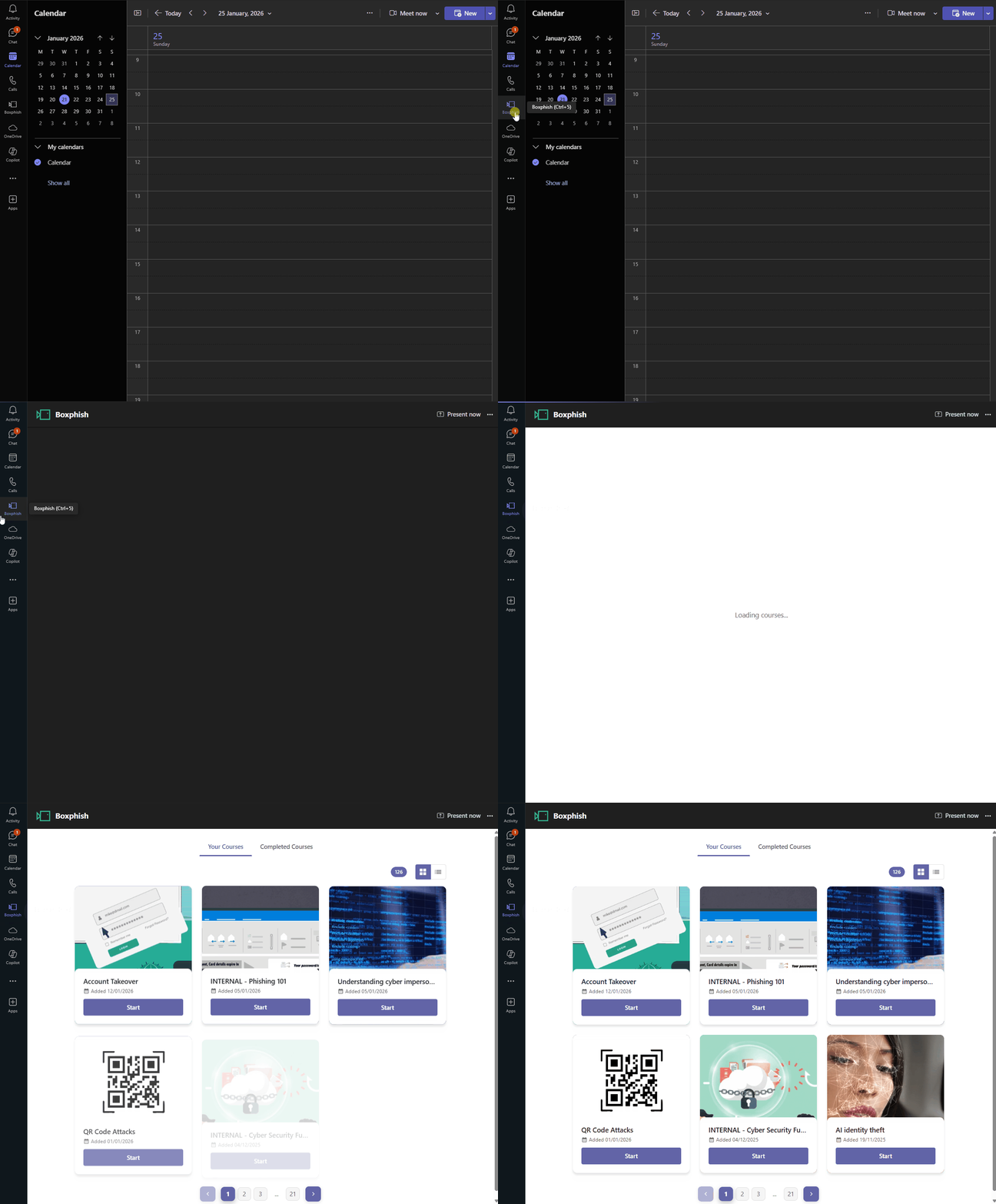
- Open Microsoft Teams.
- Click the Boxphish icon on the left.
Taking a course
- Click Start to begin your selected course.
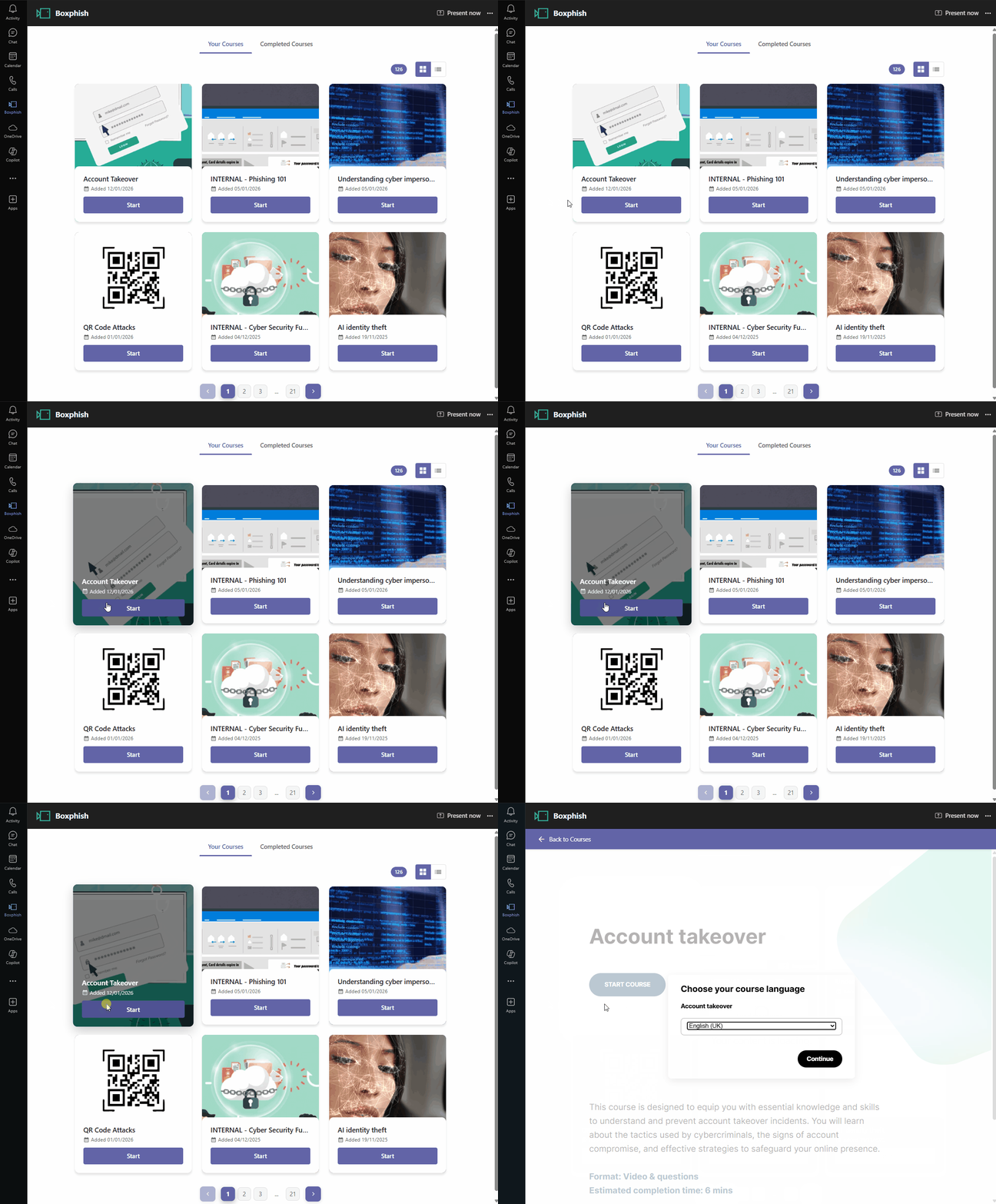
- Progress through the course.
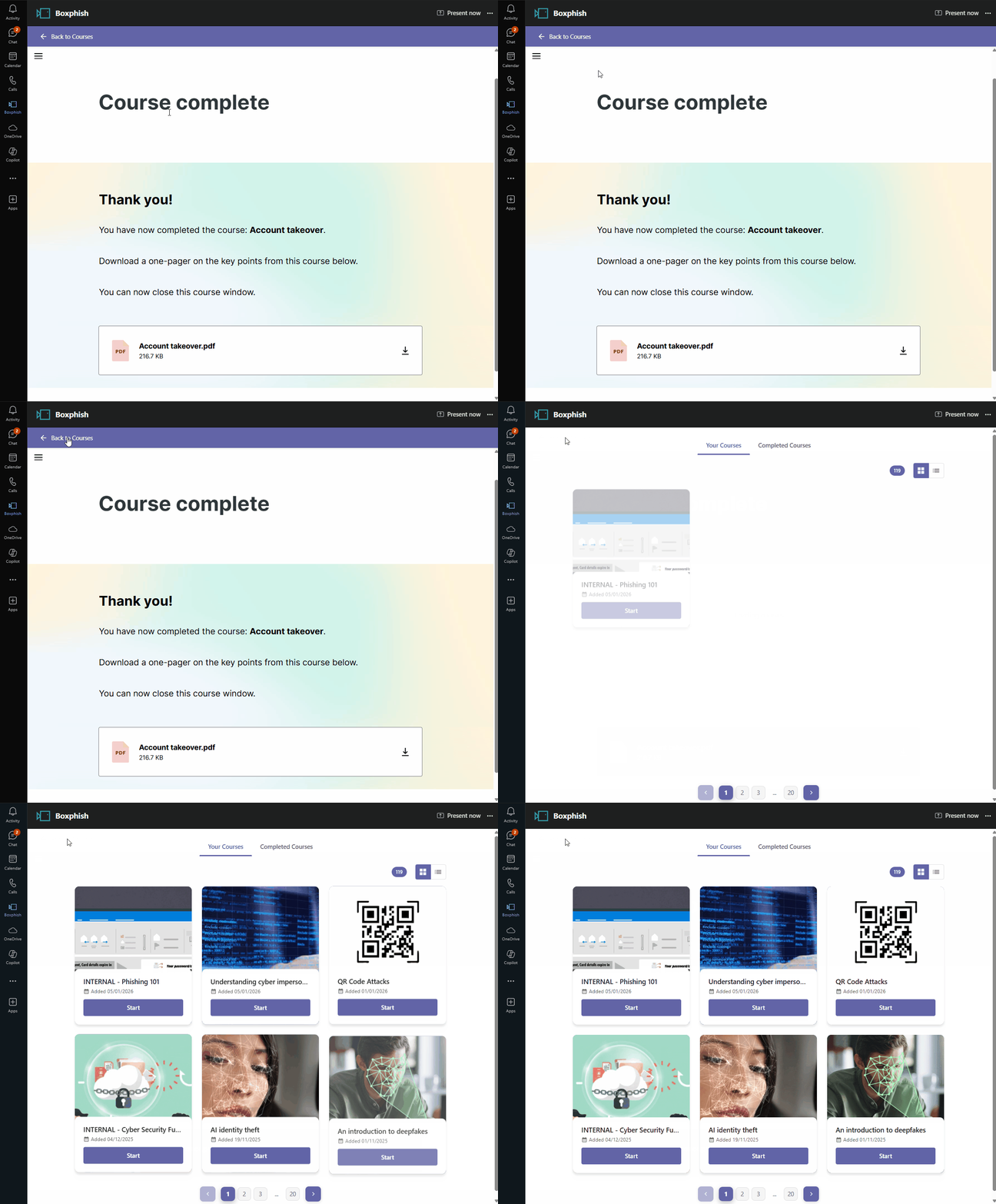
- Once Complete, click Back to Courses in the top bar to return to Your courses.
Notifications and Reminders
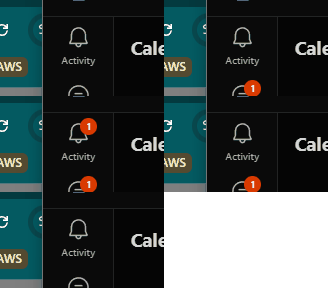
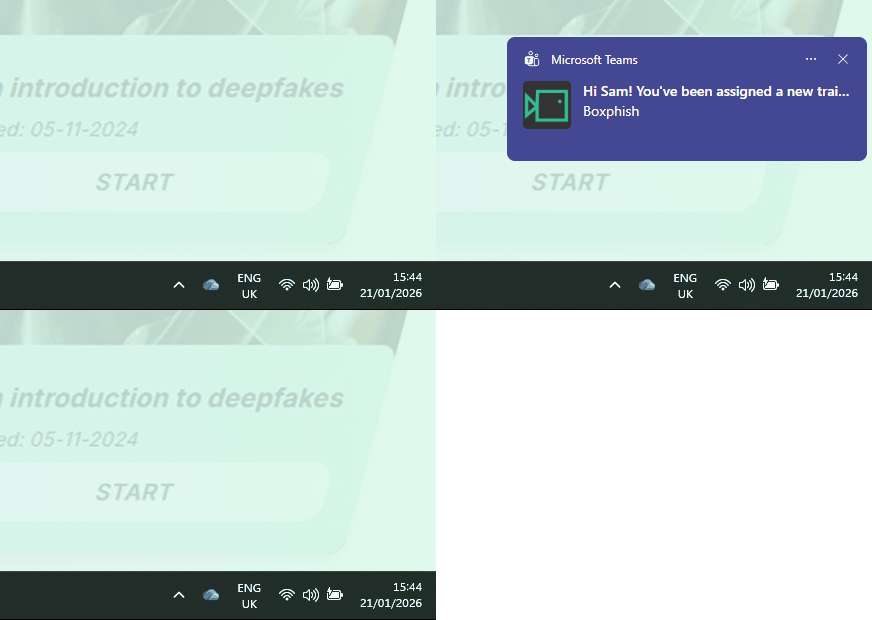
You will receive course notifications directly in Microsoft Teams when:
- A new course is assigned to you.
- You receive a course reminder.
- Clicking a notification will open the app and take you directly to Your courses.
Switching view
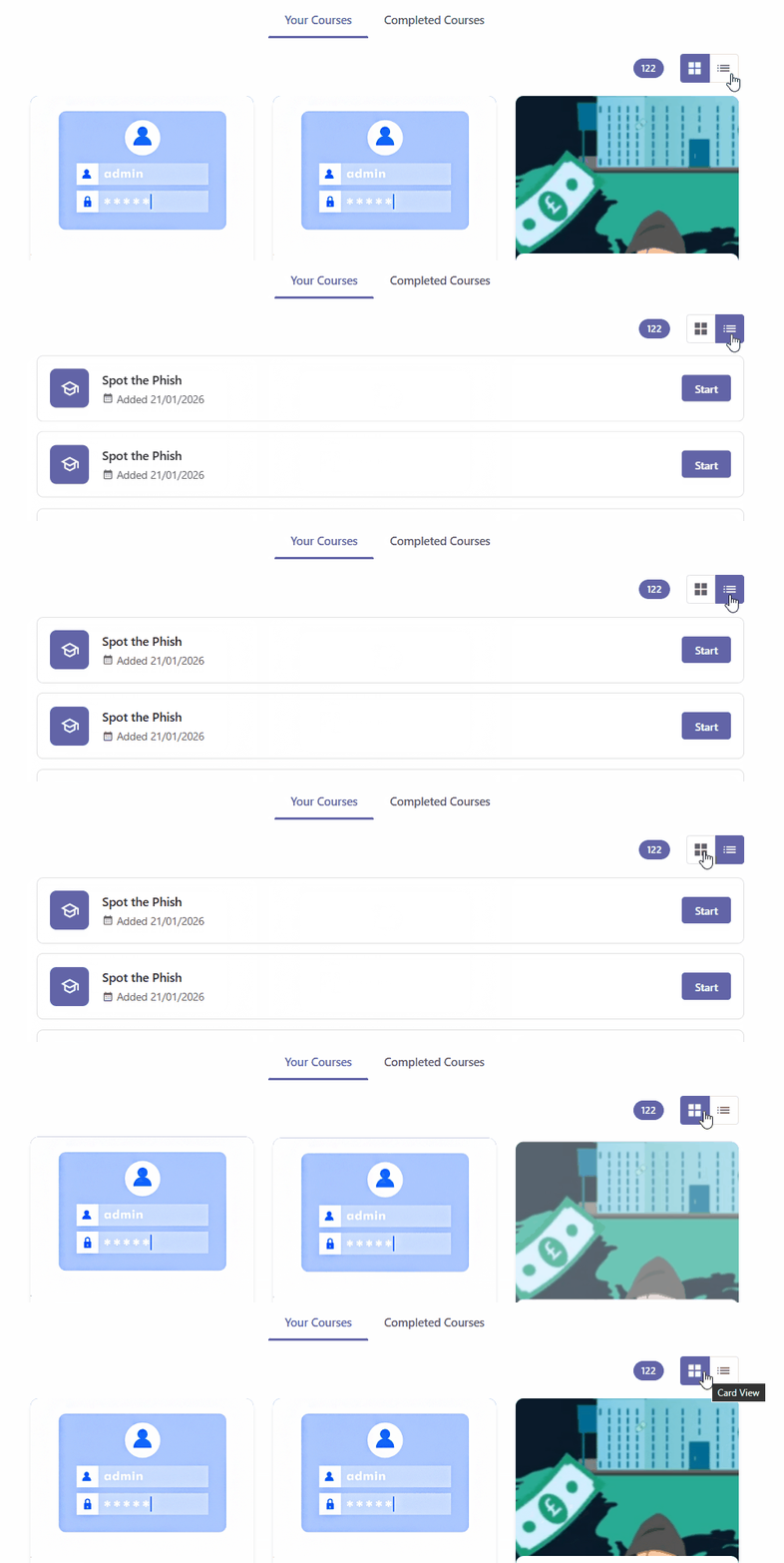
You can switch between either card or list view at any time.
The switch is located in the top right of Your courses.
Revisit a course
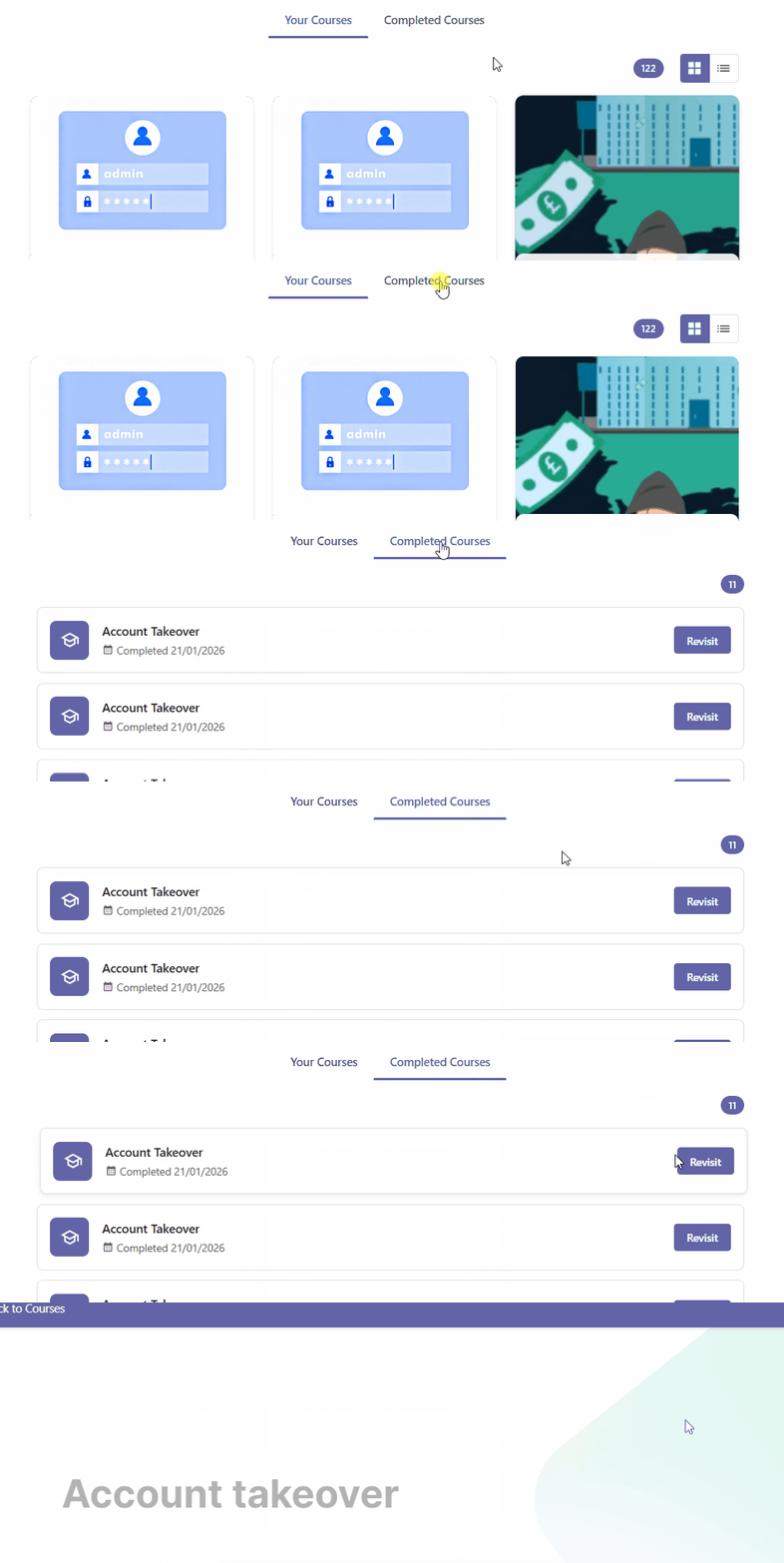
- Click Completed Courses
- Click Revisit
Mobile compatibility
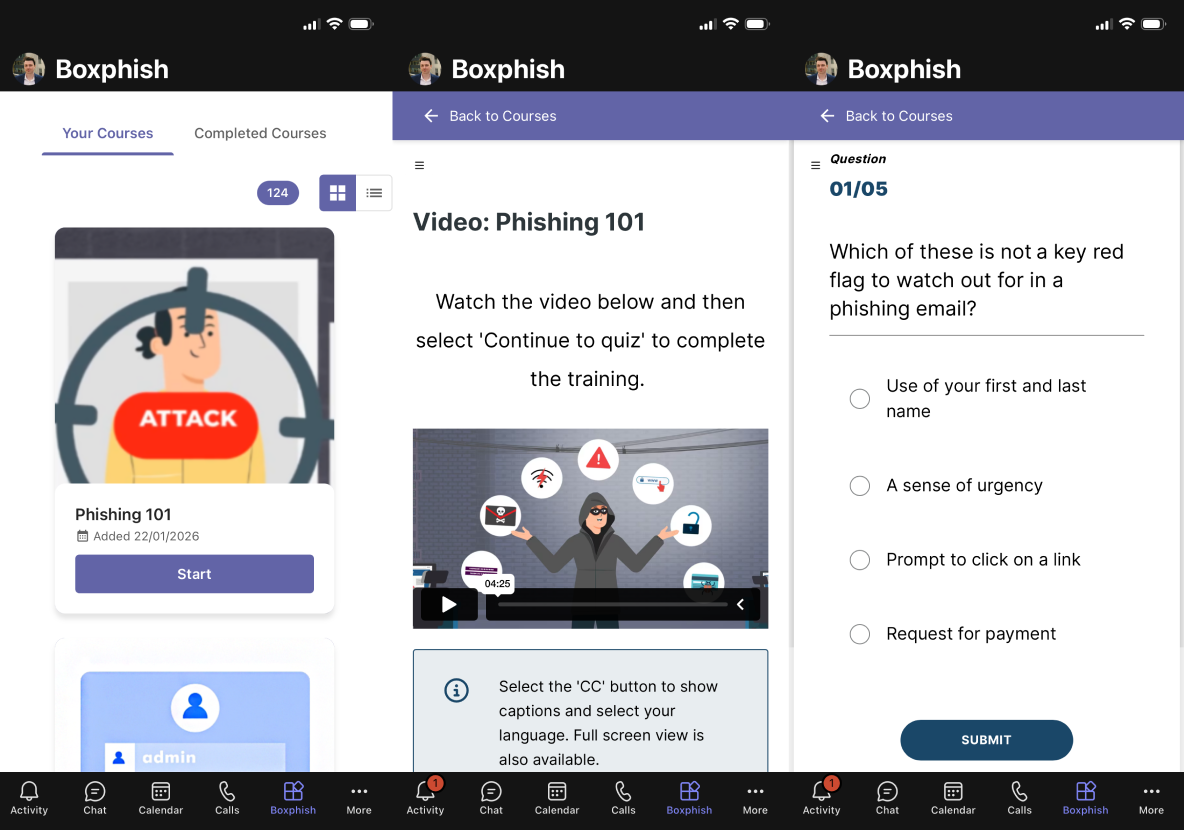
The Boxphish app automatically syncs across all versions of Microsoft Teams that a user is signed into, including desktop, web, and mobile. The app provides seamless access to training via an easy-to-reach icon within Teams. Courses automatically scale to the device being used, with no loss of functionality or user experience.
Mobile Example:
Common Troubleshooting
If you are experiencing issues using the app, try some of these common troubleshooting tips.
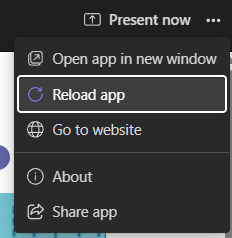
- Click Reload the app in the top-right menu.
- Restart Microsoft Teams.
- Check your internet connection.
- Make sure Teams notifications are enabled on your device.
How did we do?
Multi-factor authentication for Email
