Table of Contents
- Accessing Journey Builder
- Creating a Journey
- Select Your Audience
- Adding Content to a Journey
- Select a date
- Delivery Mode
- Scheduling
- Using Templates
- Select a template
- Applying the template
- Editing an Existing Journey
- Editing Scheduled Content
- Removing Scheduled Content
- Viewing Journey Overview
- Access
- Summary Information
- Scheduled Items
- Frequently Asked Questions
- Best Practices for Campaign Planning
- Glossary
Journey Builder
Journey Builder allows administrators to create structured cybersecurity awareness campaigns using training modules, phishing simulations, or a combination of both. Journeys are delivered automatical…
Table of Contents
- Accessing Journey Builder
- Creating a Journey
- Select Your Audience
- Adding Content to a Journey
- Select a date
- Delivery Mode
- Scheduling
- Using Templates
- Select a template
- Applying the template
- Editing an Existing Journey
- Editing Scheduled Content
- Removing Scheduled Content
- Viewing Journey Overview
- Access
- Summary Information
- Scheduled Items
- Frequently Asked Questions
- Best Practices for Campaign Planning
- Glossary
- Accessing Journey Builder
- Creating a Journey
- Select Your Audience
- Adding Content to a Journey
- Select a date
- Delivery Mode
- Scheduling
- Using Templates
- Select a template
- Applying the template
- Editing an Existing Journey
- Editing Scheduled Content
- Removing Scheduled Content
- Viewing Journey Overview
- Access
- Summary Information
- Scheduled Items
- Frequently Asked Questions
- Best Practices for Campaign Planning
- Glossary
Journey Builder allows administrators to create structured cybersecurity awareness campaigns using training modules, phishing simulations, or a combination of both.
Journeys are delivered automatically over time, helping you engage users with relevant content at the right moment.
Journey Builder includes audience targeting, flexible delivery methods, and collection-based simulations, giving you full control over how campaigns are delivered.
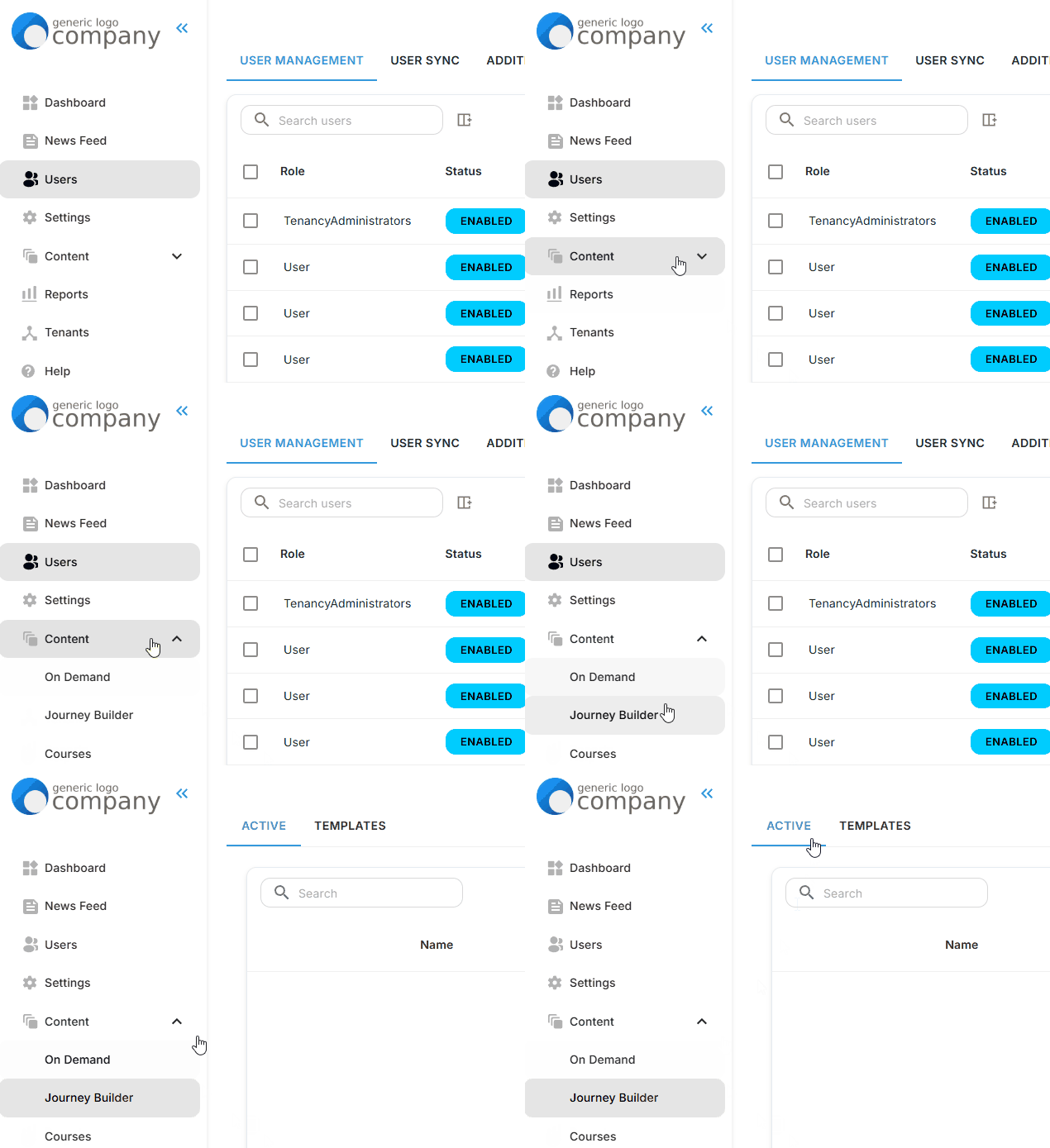
Accessing Journey Builder
- Log in to the Portal
- In the left-hand navigation, expand Content
- Click Journey Builder
Creating a Journey
Purpose
Build and schedule a custom awareness campaign for a defined audience.
Select Your Audience
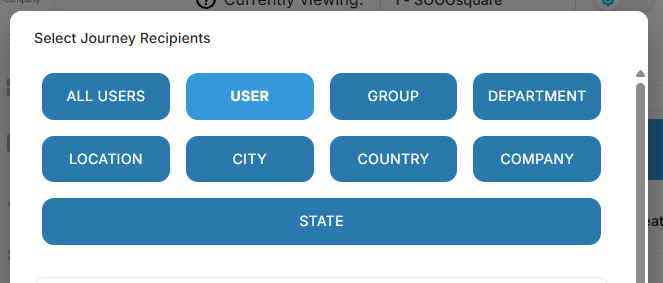
- After clicking Create Custom, you will first select who the journey should be sent to.
You can target users using:
- All Users
- Individual Users
- Group
- Department
- Location
- City
- Country
- Company
- State
Once you select a targeting type, you can:
- Search and select the relevant users or values
- Apply your selection
- Click Continue to Calendar once your audience is selected.
Adding Content to a Journey
Purpose
Schedule training courses or phishing simulations within your journey.
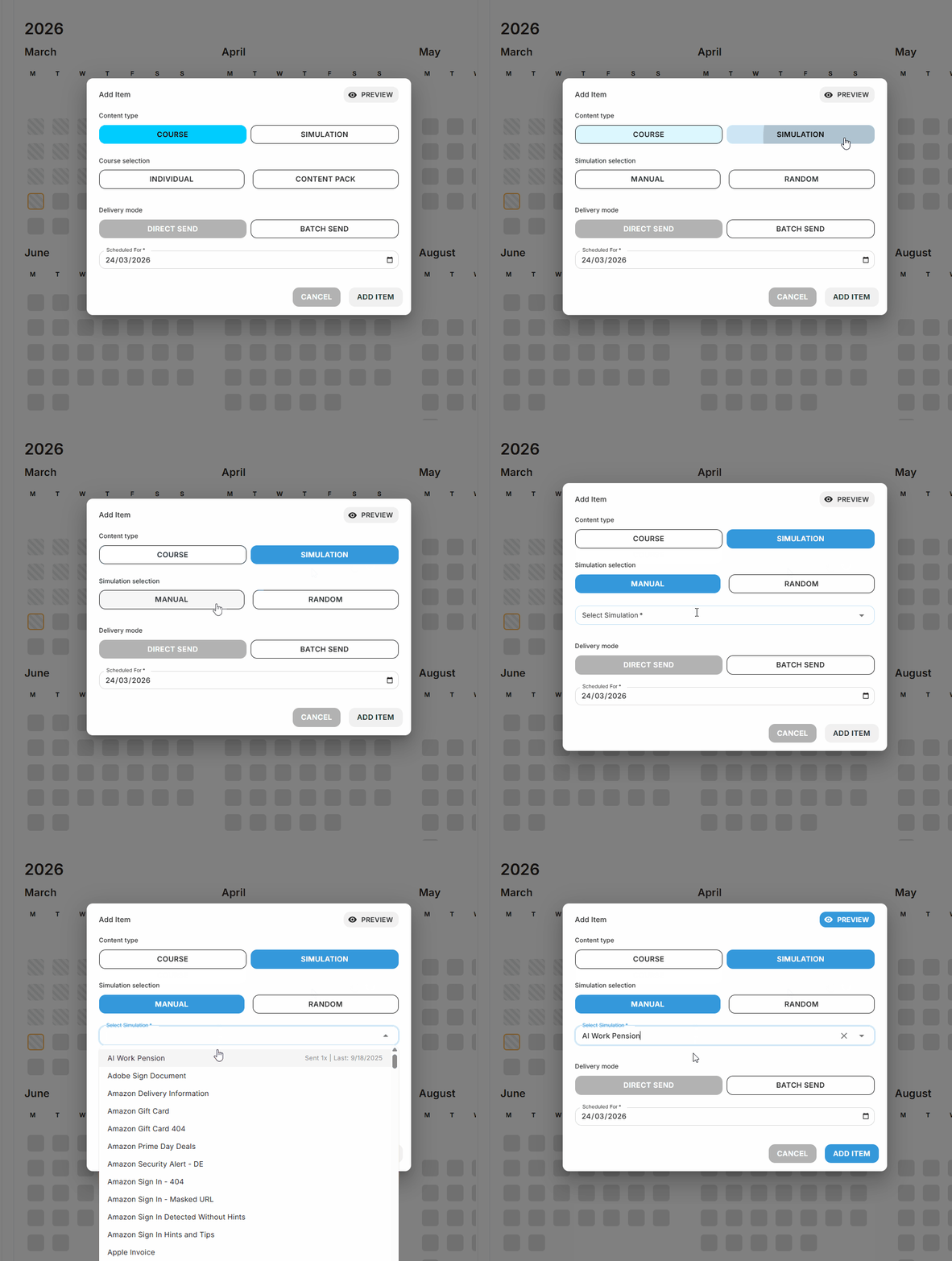
Select a date
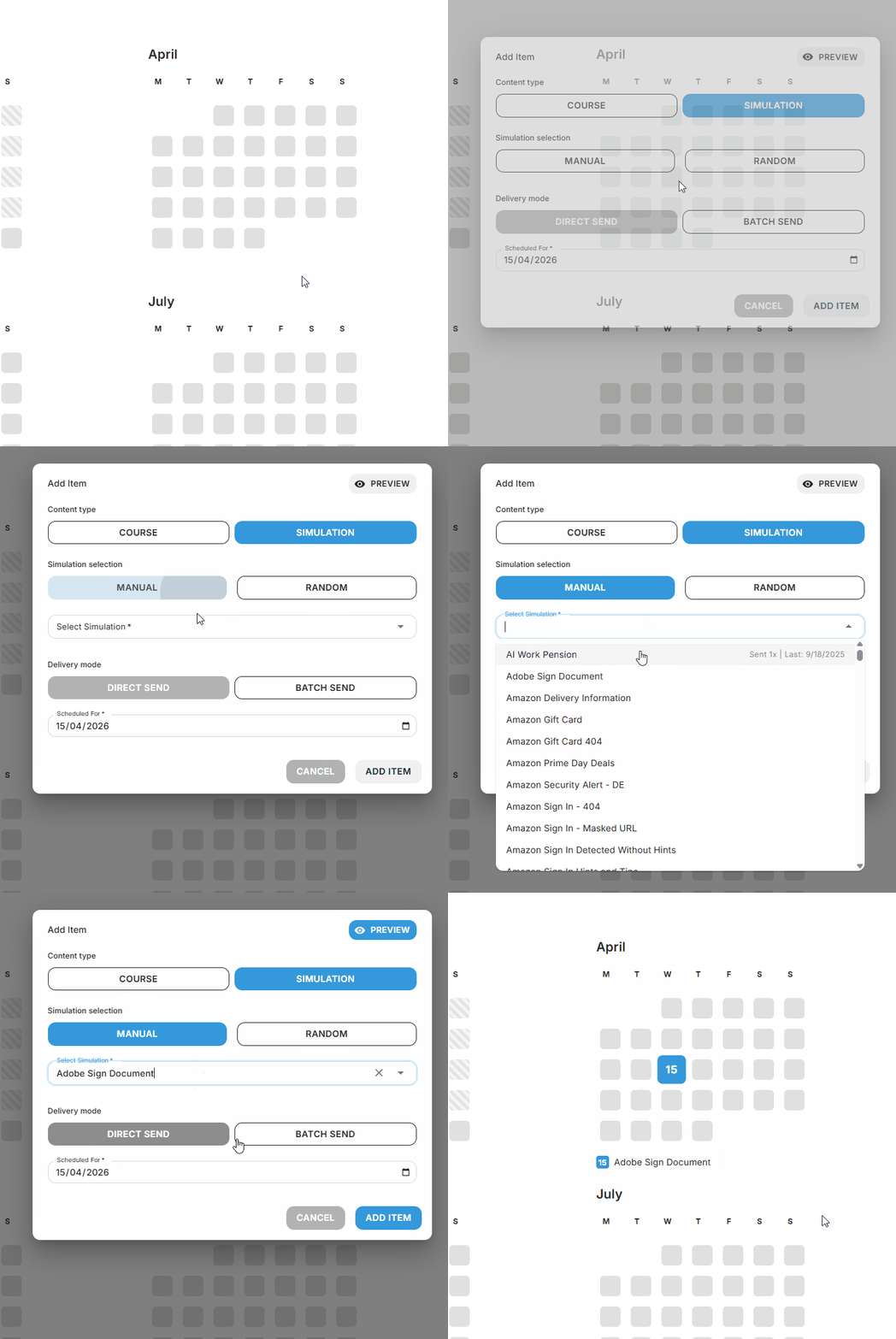
- Click a date in the calendar
- Select your Content Type:
- Course
- Simulation
Simulation Options
If you select Simulation, choose how the simulation is delivered:
Manual
- Select a specific simulation
- Use when you want full control over the content
Random (Collection-based)
- Select a Collection
- A simulation is selected at random from the collection at send time
Delivery Mode
Choose how the content will be delivered:
Direct Send
- Sent at a specific date and time
- Best for one-time scheduled sends
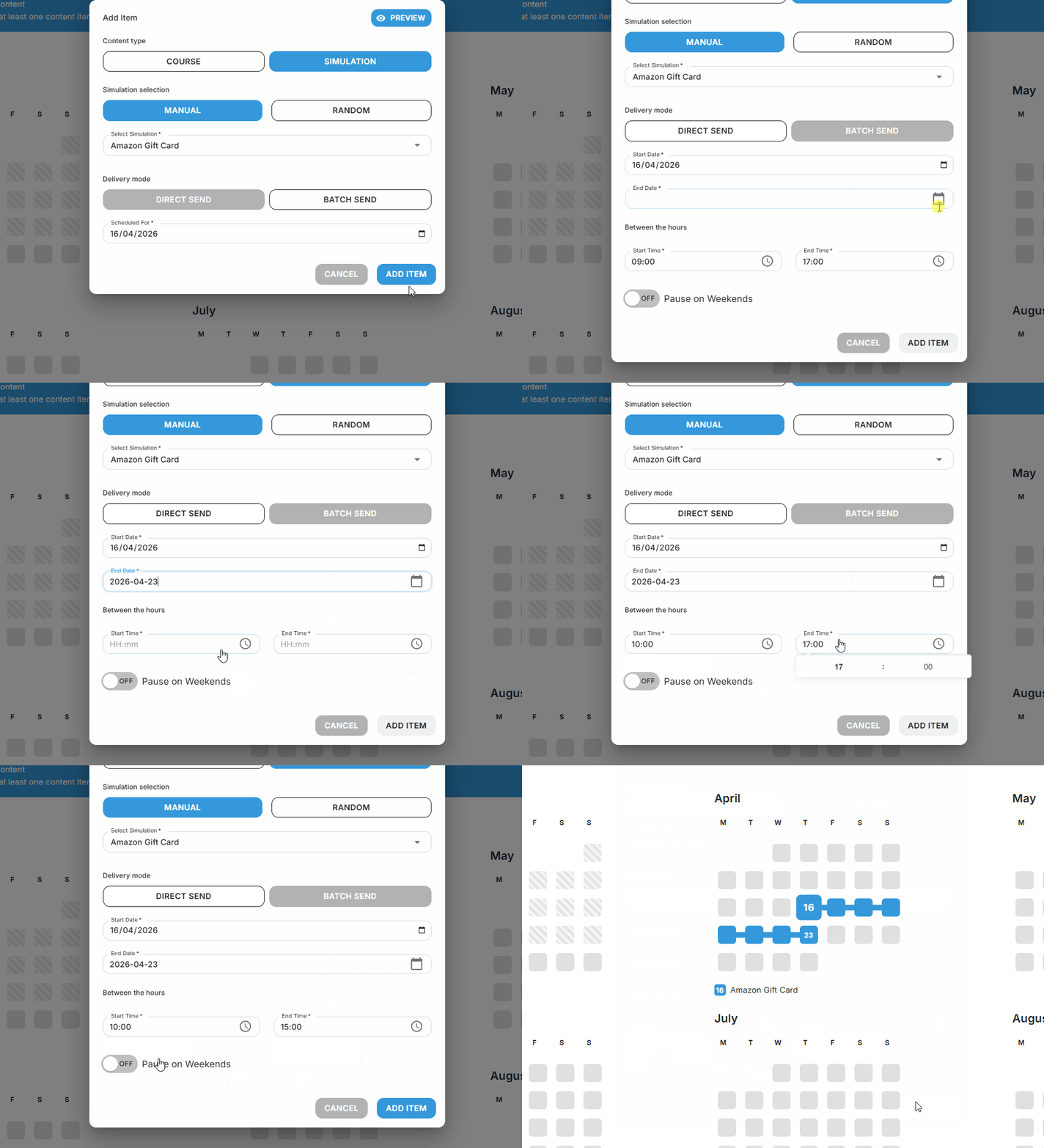
Batch Send
- Sent gradually over a defined time period
- Designed to simulate realistic phishing campaigns
When using Batch Send, you can configure:
- Start Date
- End Date
- Delivery window (start and end time)
- Optional: Pause on weekends
Scheduling
You can:
- Schedule multiple items on the same date
- Combine different delivery types within a journey
Using Templates
Purpose
Launch a pre-built journey with minimal setup.
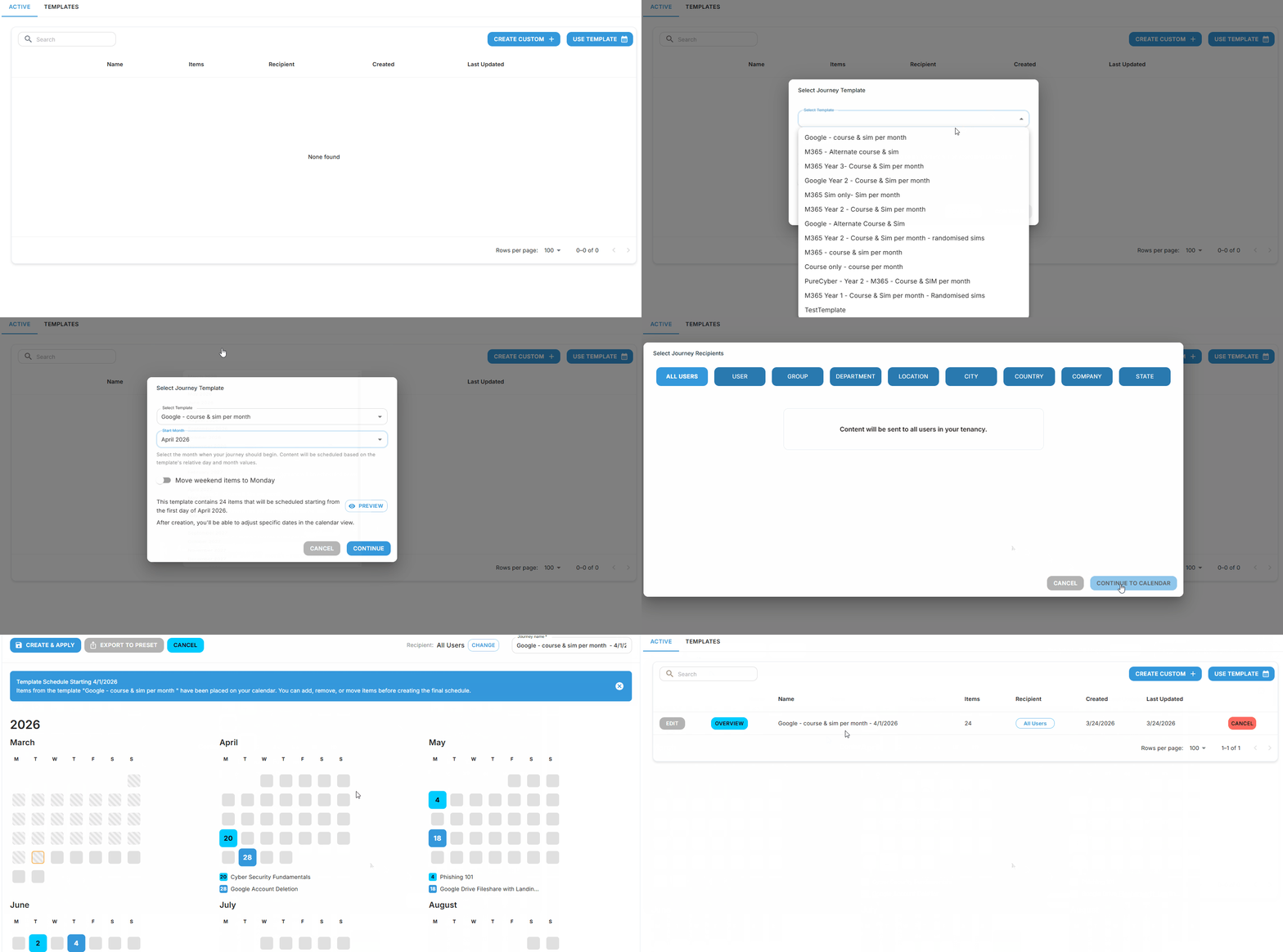
Select a template
- Click Use Template
- Select a template
- Choose a Start Month
- Optionally enable Move weekend items to Monday
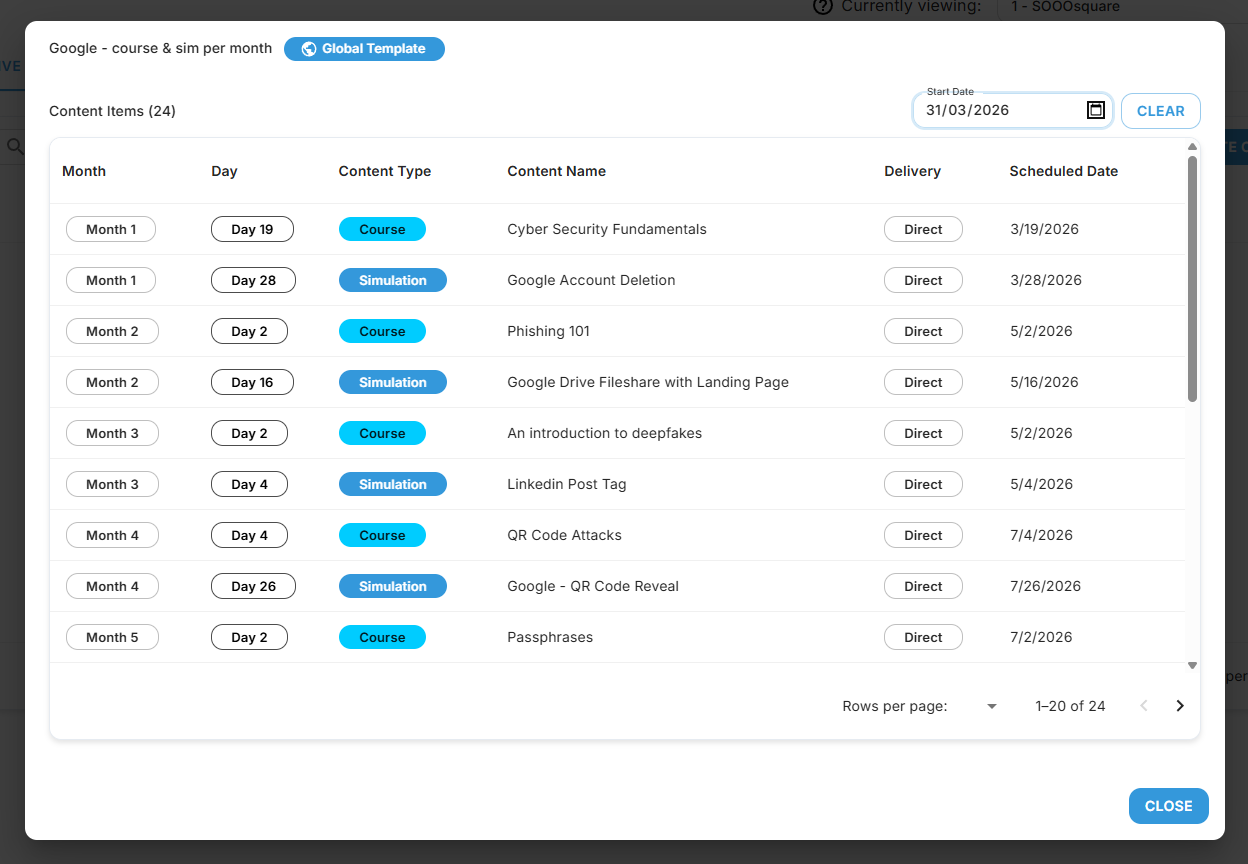
- Click Preview to review scheduled content

Template Preview
The preview shows:
- Content items included in the journey
- Content type (Course, Simulation, Random Simulation, Content Pack)
- Delivery method (Direct or Batch)
- Relative timing (e.g. Month 1, Day 3)
You can also:
- Set a Start Date to see exact scheduled dates
- Review how the journey will be distributed over time
Applying the template
- Click Continue
- Select your target audience
- Edit Scheduled Content (see below)
- Click Create & Apply
Full process example
Editing an Existing Journey
Purpose
Make changes to a journey after it has been created.
Editing a Journey:
- Locate your journey in the main view
- Click Edit
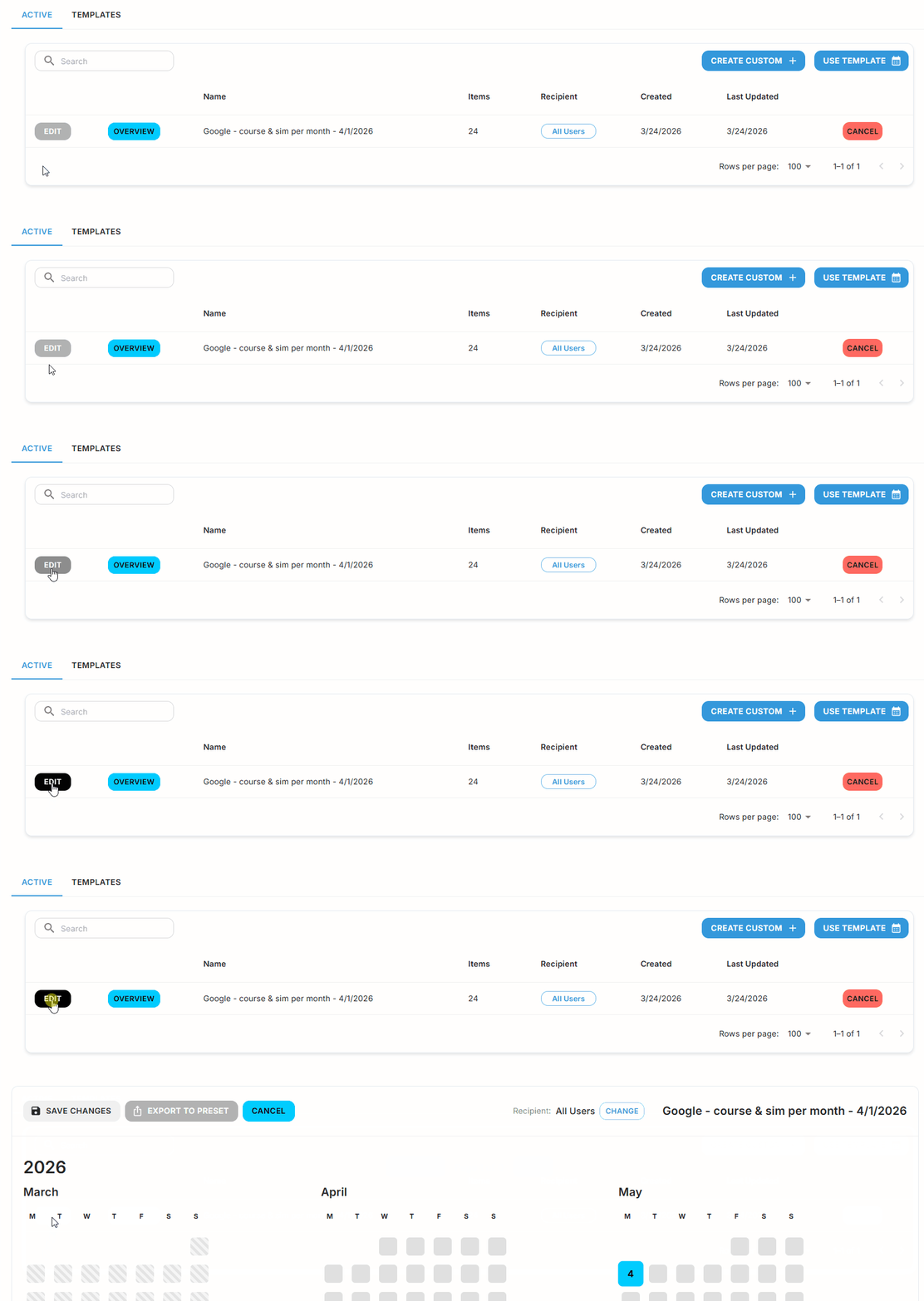
- Make your updates (content or schedule)
- Click Save Changes
Editing Scheduled Content
Purpose
Modify an individual item within a journey.
Editing an item:
- Click an item in the calendar
- In the edit window, you can:
- Change content type
- Switch between Manual or Random
- Select a different simulation or collection
- Adjust delivery mode
- Update scheduling
- Click Update
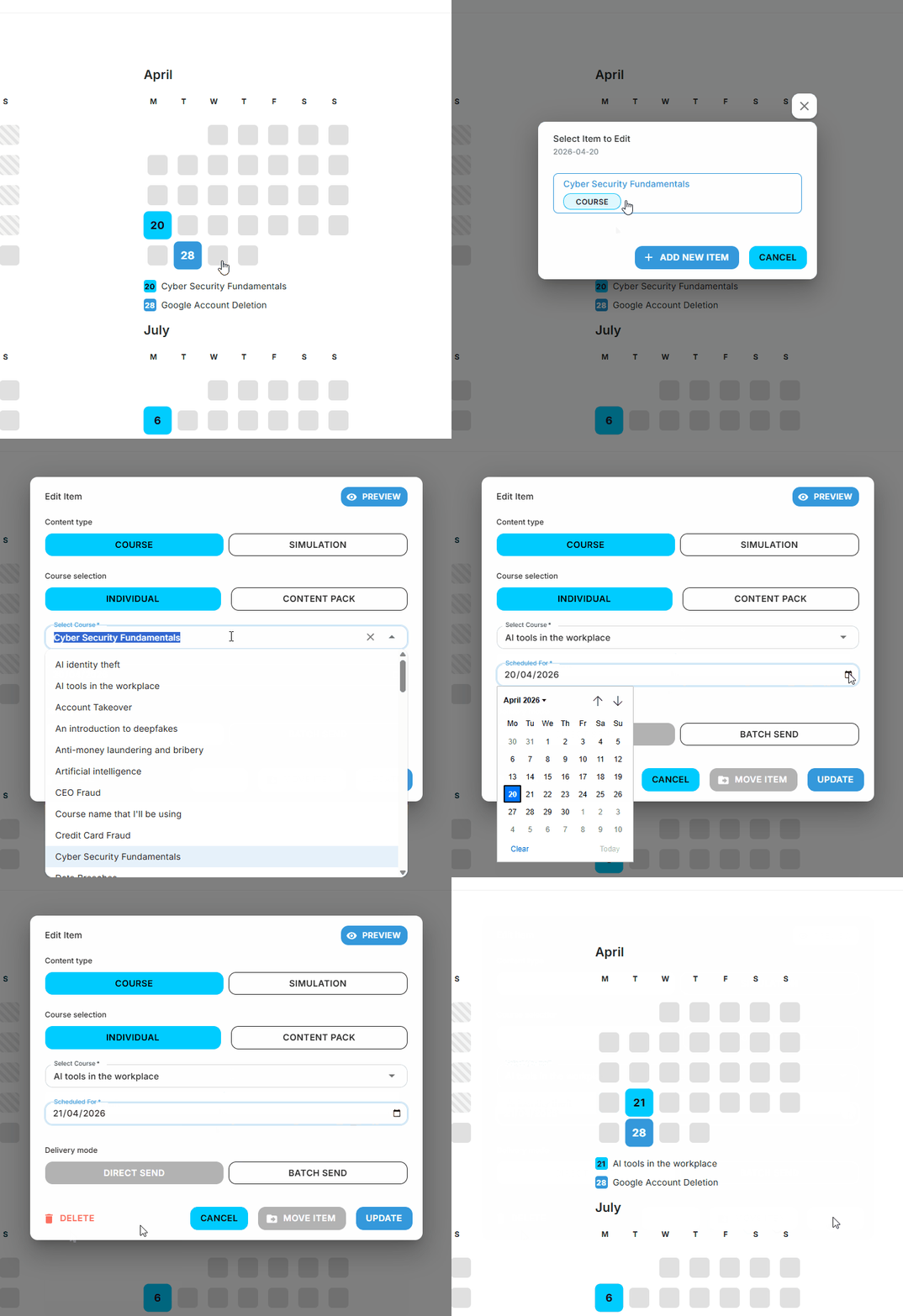
- Click Save Changes
Removing Scheduled Content
Purpose
Remove an item from a journey.
Deleting an item:
- Click the item in the calendar
- Click Delete
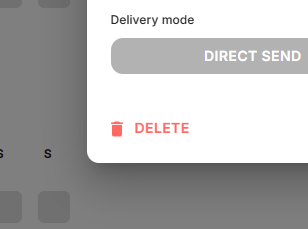
- Deletions are permanent
- Items can be re-added if needed
Viewing Journey Overview
Purpose
Review journey details and delivery status.
Access
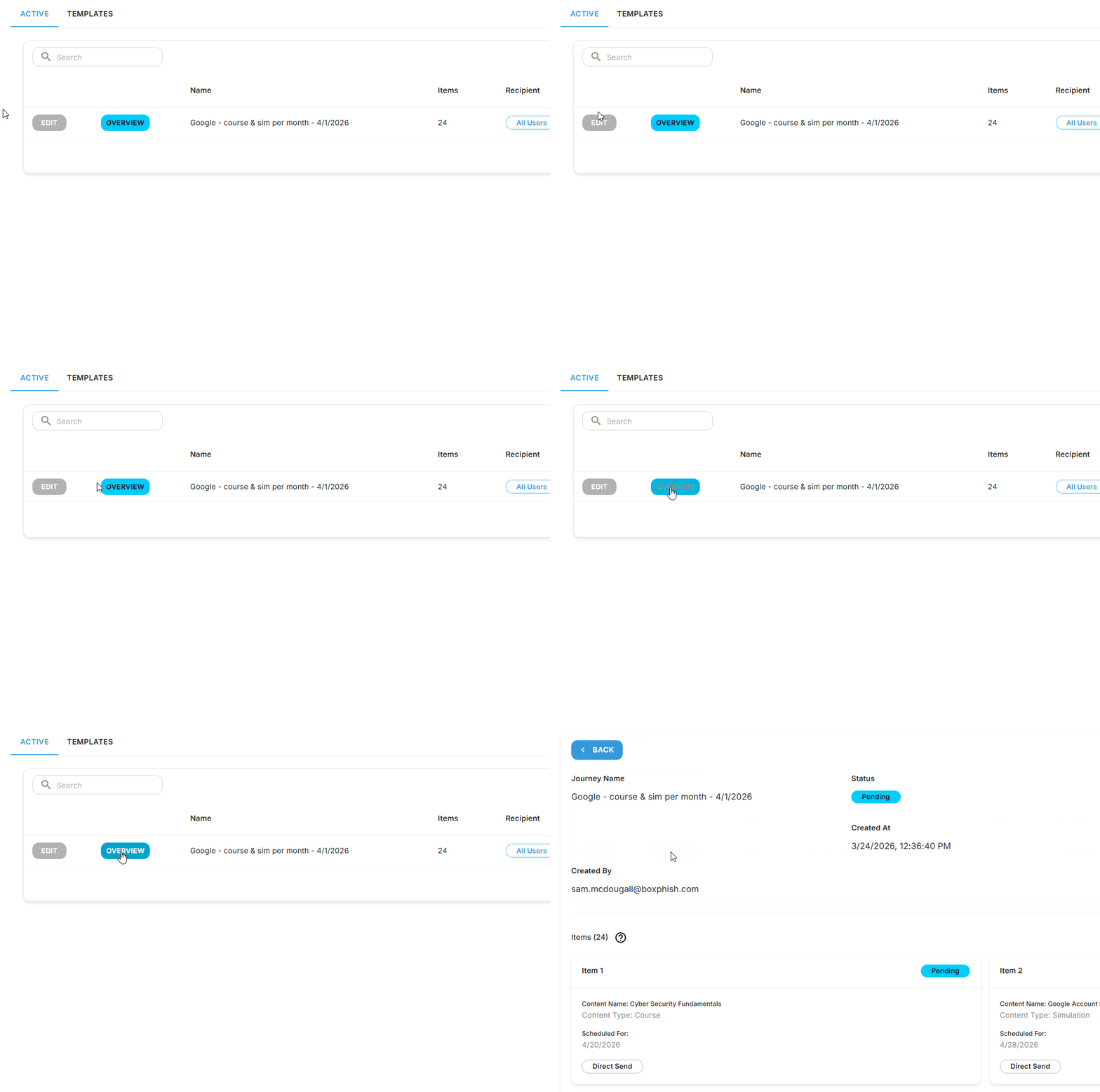
From the Journey Builder Active tab, click Overview
Summary Information
- Journey Name
- Status (Pending, Sent, Failed, Cancelled)
- Created At / Last Updated
- Created By
Scheduled Items
Each item includes:
- Content type (Course, Simulation, Random Simulation, Content Pack)
- Content name
- Scheduled date and time
- Delivery status
Status Key:
Status | Description |
Pending | The item is scheduled and awaiting delivery. |
Sent | The item has been delivered to users. |
Failed | The item could not be delivered. If encountered, please speak to our support team for further investigation. |
Cancelled | The item was manually removed or interrupted before delivery. |
Tips:
- Use the Overview to quickly audit and verify your journey setup.
- Item statuses help track readiness across your campaign.
- This view is read-only. Return to the calendar to make changes.
Frequently Asked Questions
Question | Answer |
Can I schedule more than one item on the same date? | Yes, multiple items can be scheduled for the same day. |
How far into the future can I plan a journey? | Up to 24 months. |
Can I rename a journey from a template? | You can rename it before applying. Once applied, the name is fixed. |
Best Practices for Campaign Planning
Practice | Description |
Diversify content | Mix training modules and phishing simulations for greater engagement. |
Avoid clustering | Spread out items across the calendar to avoid user fatigue. |
Plan ahead | Schedule journeys around key awareness months or organizational events. |
Use templates wisely | Start with templates and tailor them to meet your team's needs. |
Review regularly | Periodically revisit and revise journeys to maintain relevance. |
Glossary
Term | Definition |
Journey | A scheduled series of awareness training items and simulations. |
Phishing Simulation | A test email designed to mimic real-world phishing attacks. |
Training Module | An educational content piece used to build user awareness. |
Tenancy | A unique instance of the Boxphish platform assigned to your organization. |
How did we do?
Logs
Upload your own course
