Managing your User Sync
Below is a short guide on how to manage your User Sync groups, once already configured via: Deleting an Existing Group. Replacing an Existing Group. Deleting an Existing Synced group: If you would li…

Updated
by Meg Bird
Below is a short guide on how to manage your User Sync groups, once already configured via:
- Deleting an Existing Group
- Replacing an Existing Group
Deleting an Existing Synced group:
If you would like to remove a synced group, you can control this via the Portal > Users > User Sync:
- Click 'Edit Groups':
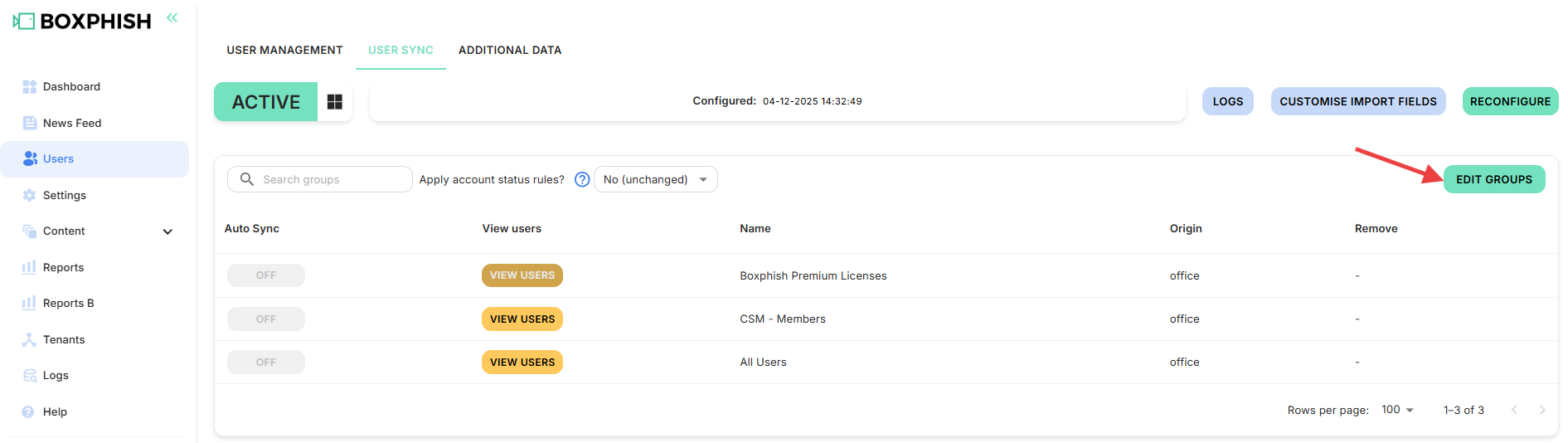
- Click the bin icon:
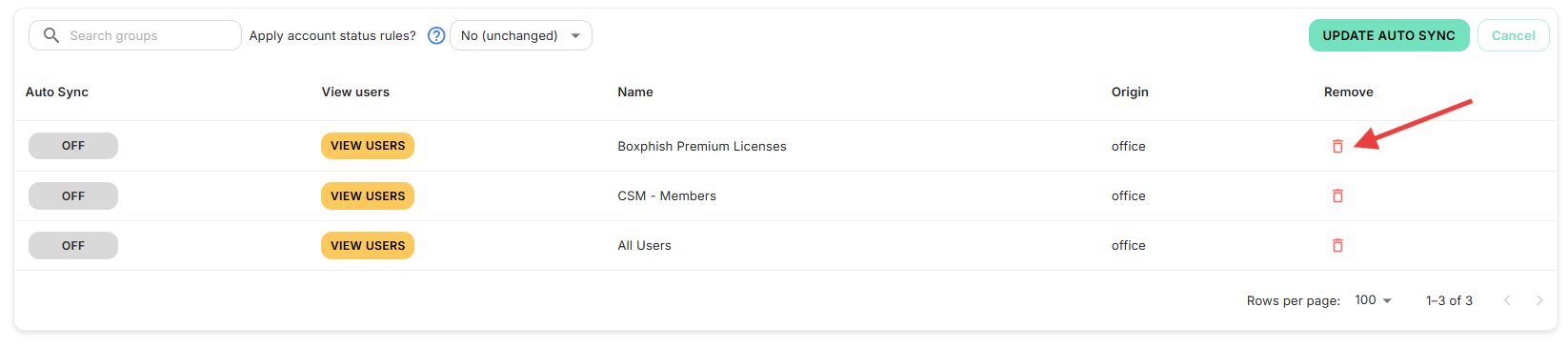
- If the group has no associated users, the group will be deleted.
- This group may be readded by reconfiguring your Synced Groups, via clicking 'Reconfigure'. For this, please follow the steps outlined on our Microsoft AD Sync (Setting Up Microsoft User Sync - Boxphish Knowledge Base) or Google Sync (How to set up Google Sync - Boxphish Knowledge Base) guides.
- If the group does have users associated, a pop-up will be presented:
- Users who are only present in the selected group will be deleted, as part of the group's removal, unless they are:
- Converted to manual users by the 'MAKE THESE USERS MANUAL INSTEAD' button. NB. Manual users are users that do not belong to, nor are controlled by a Synced Group.
- Members of another Synced Group*
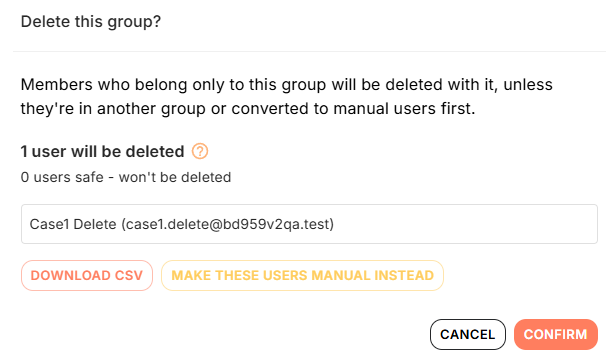
- Users who are only present in the selected group will be deleted, as part of the group's removal, unless they are:
* Users can be deleted as part of this group deletion, then re-activated (along with their user history) when they join another Synced Group. Alternatively, if your users are present in >1 group then please speak to your Customer Success Manager or our Support team about Multi-Group Membership - this allows users to be in multiple Synced Groups.
Replacing an Existing Synced group:
To replace an existing group(s) with a new group(s) follow the below steps:
- Add your new groups via the 'Reconfigure' button, and steps outlined on our Microsoft AD Sync (Setting Up Microsoft User Sync - Boxphish Knowledge Base) or Google Sync (How to set up Google Sync - Boxphish Knowledge Base) guides.
- Delete any unwanted groups via the Deletion process above.
- Click 'Resync', to restore any previously deleted users. This resync will restore users when matching on UniqueID or email (dependant on your email provider).
If you experience any issues with this feature, please contact your Customer Success Manager or our Support Team at support@boxphish.com
How did we do?
Microsoft Teams app installation
Single Sign-On from the Okta Dashboard
