Content Pack Assignment allows administrators to deploy training content to users quickly and consistently by assigning a predefined pack of courses. Packs can be targeted to specific users or automa…
Content Pack Assignment allows administrators to deploy training content to users quickly and consistently by assigning a predefined pack of courses. Packs can be targeted to specific users or automatically assigned using metadata such as group, department, location, or company, ensuring the right training reaches the right audience without manual enrolment.
Navigation
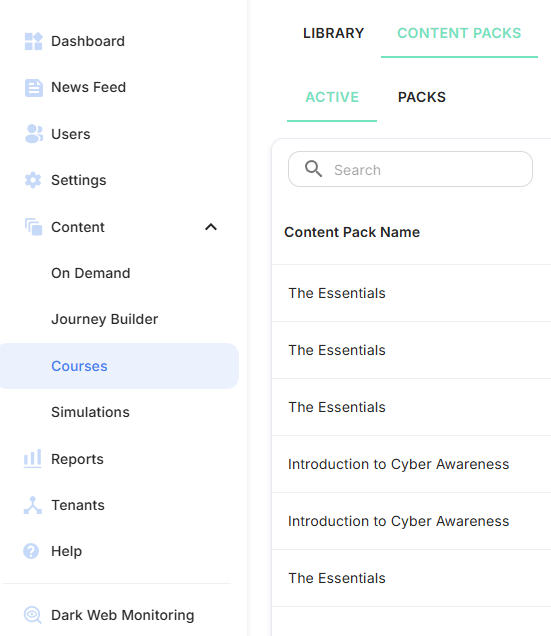
Navigate to Content -> Courses -> Content packs -> Active
Assignment
Click Assign Pack.
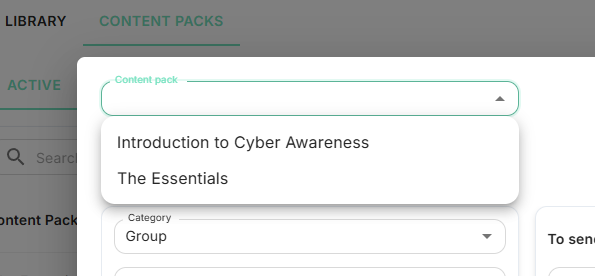
Select the Content pack to send.
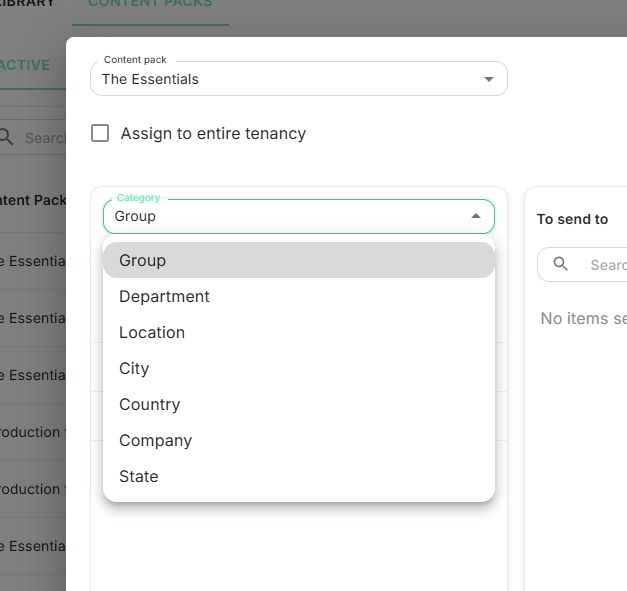
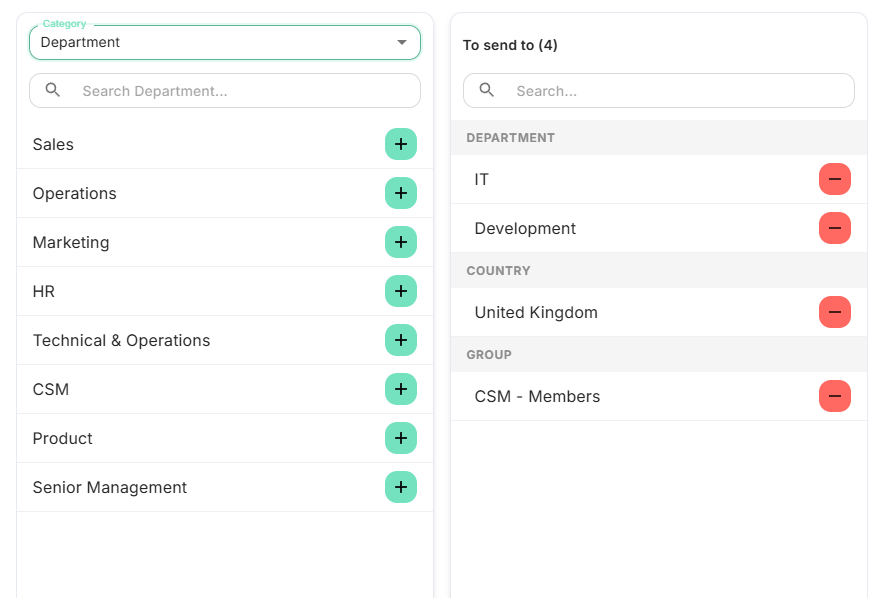
Using the Category drop-down, select the users you want to assign the content pack to. You can assign users based on Group, Department, Location, City, Country, Company, or State. If you want to assign the content pack to all users in your tenancy, simply tick Assign to Entire Tenancy.
Use the + and - to add and remove categories. These will be listed on the right while building the assignment.
Selecting Assign to entire tenancy will grey out the selection as these would no longer be required.
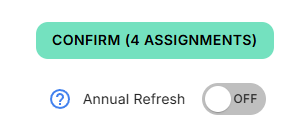
Choose whether to enable Annual refresh.
When enabled, the content pack will retrigger once per year for all users who are part of the assignment, reassigning the courses contained within it.
Click confirm.
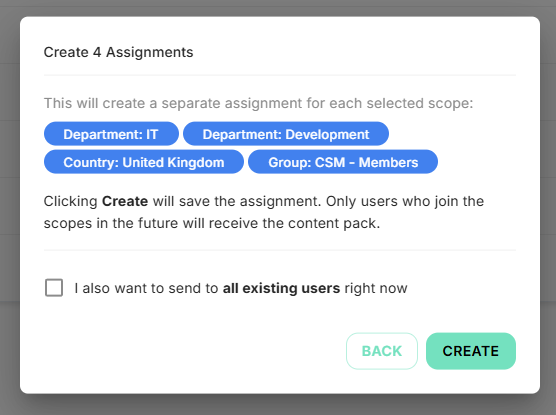
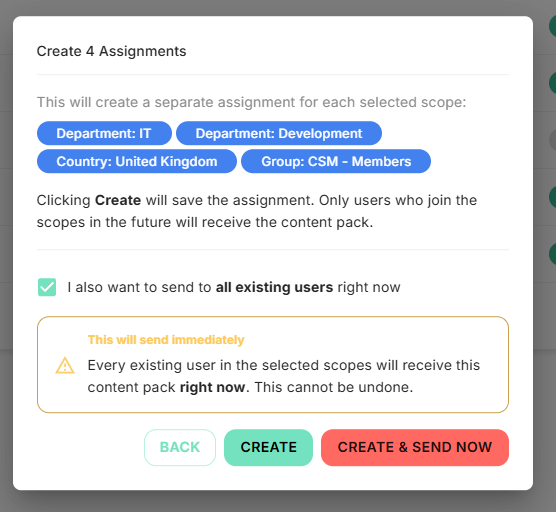
Before finalising, you will be shown a summary of the assignment you have configured. From here, you can either click Back to make changes or click Create to complete the assignment.You also have the option to send the assignment to all currently matching users immediately by selecting the available tick box. If enabled, you will be asked to confirm this action. Please note that this will send the assignment to all users who match the selected criteria at the time of creation. If you wish to do this, click Create & Send Now.
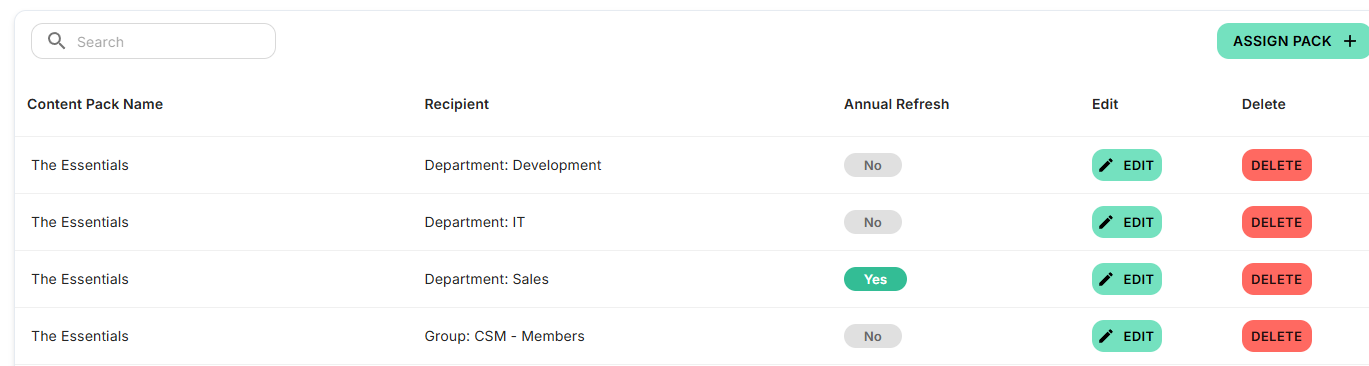
Your Content Pack assignments have now been created and will appear as individual items in the list.
Editing an assignment
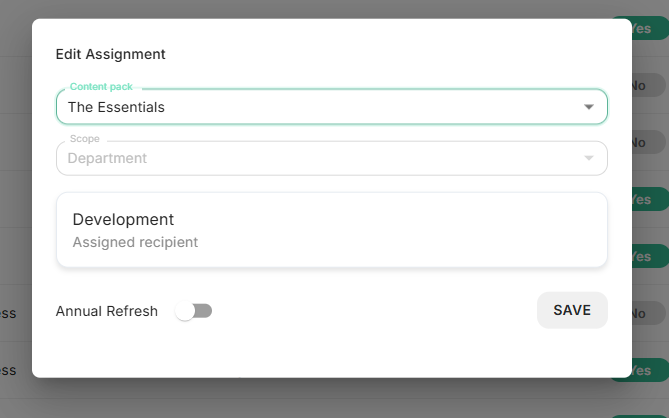
Click Edit within the Active tab to modify the Content Pack or toggle Annual Refresh. The assignee criteria cannot be changed once the assignment has been created.
Once you are satisfied with your changes, click Save to apply them.
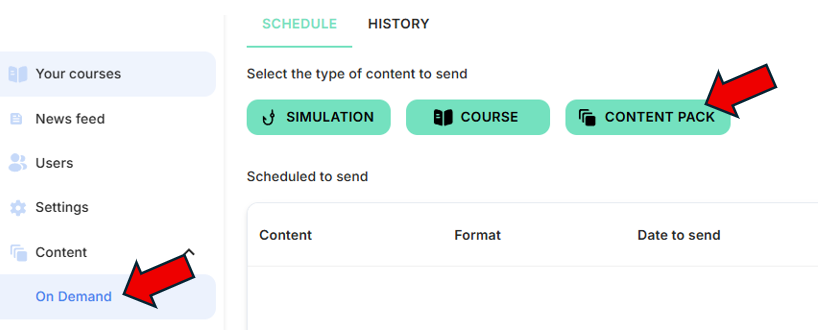
Content packs are also available to be sent adhoc in On Demand.